Bluetooth Controller Function
Introduction
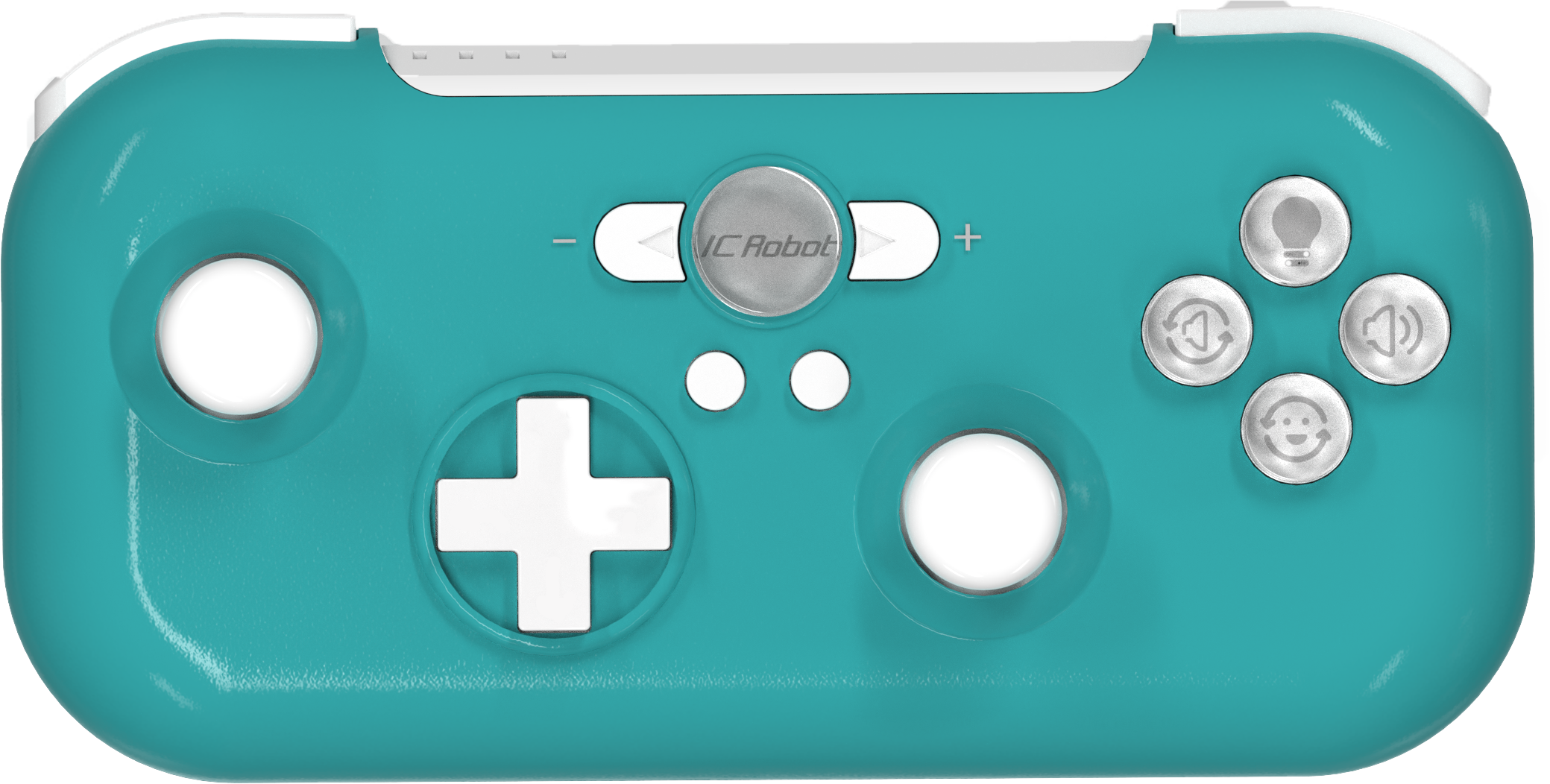
The ICRobot Multi-functional Bluetooth Controller is a versatile control device developed for the I Create Robot product series and is compatible with multiple product lines. With Bluetooth wireless connectivity, users can control robot movements in real time for effortless remote operation.
Structure
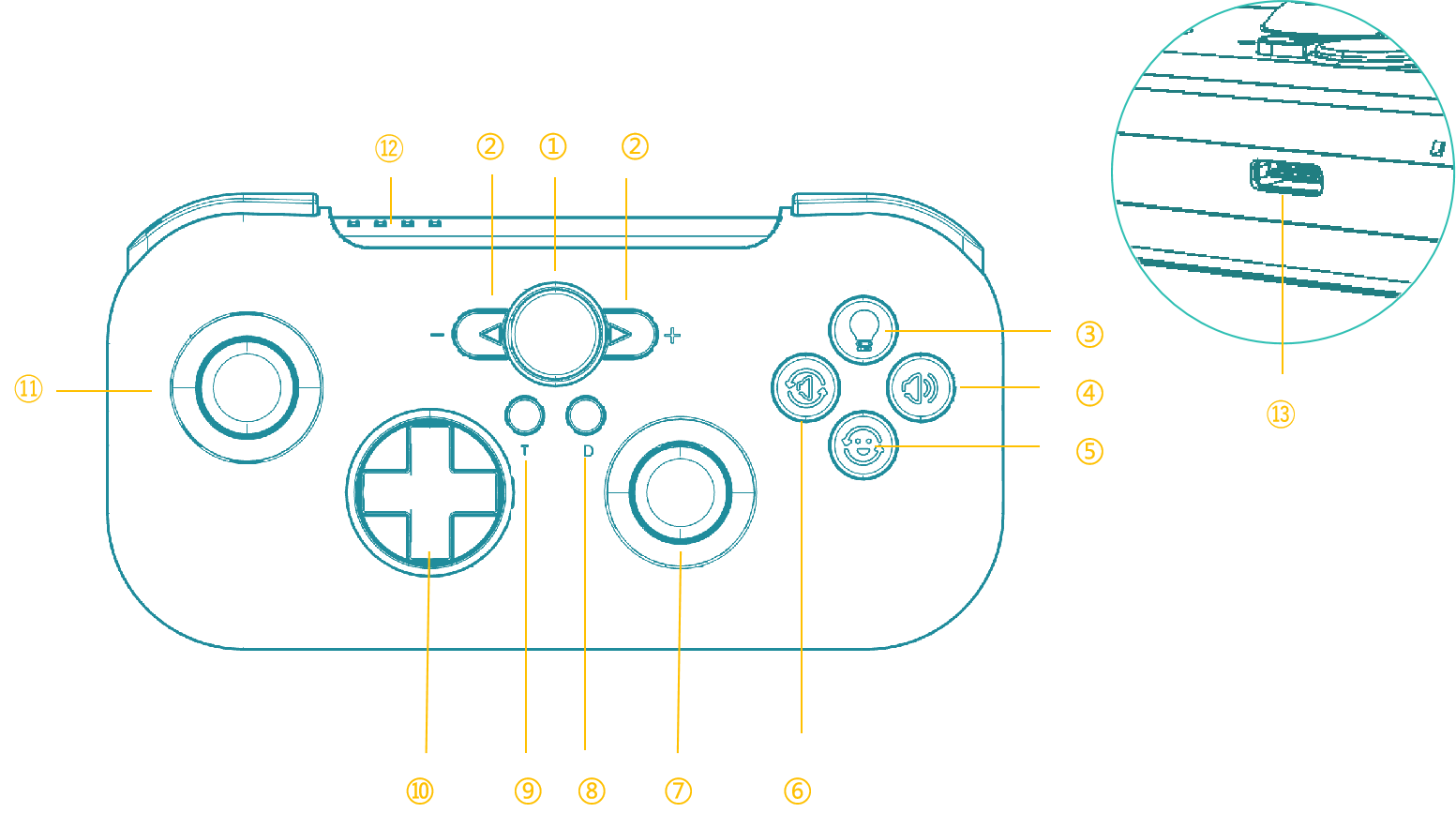
No. |
Name |
Description |
|---|---|---|
① |
Home Button |
1. Power on/off: Press and hold for 3s to turn on or off. Red light flashes when powering on. |
② |
Speed Buttons |
Adjust robot speed (Low, Medium, High). The default is Medium. Press to increase or decrease speed. |
③ |
Light Button |
Toggle lights on/off. |
④ |
Play Button |
Play the selected sound. |
⑤ |
Expression Button |
Switch to the next expression. |
⑥ |
Sound Button |
Switch to the next sound. |
⑦ |
Right Joystick |
1. When the joystick is pushed forward, the motor is rotating; The motor stops when the joystick returns to its origin. When the joystick is pressed, the motor continues to turn forward, and the motor stops when the joystick returns to its origin. |
⑧ |
D Button |
Press and hold for 2s to forget the configure Bluetooth |
⑨ |
T Button |
Used to connect the robot with the handle by Bluetooth. Press for 3s and the boot indicator will flash blue after the connection is successful. |
⑩ |
Motion Type Button |
The robot takes one step forward when the Up button is pressed, one step backward when the Down button is pressed, turns 90° left when the Left button is pressed and turns 90° right when the Right button is pressed. |
⑪ |
Left Joystick |
Controlling Robot Motion |
⑫ |
Battery Indicator |
Shows charge and operation status: |
⑬ |
USB-C |
For charging, firmware updates, and mode switching. |
Specifications
Item |
Description |
|---|---|
Name |
ICRobot Multi-functional Bluetooth Controller |
Code |
Z0120012 |
Dimensions |
133 × 64 × 25 mm |
Weight |
117 g |
Material |
ABS |
Material |
800mAh(LiPo) |
Charging Input |
5V/1A |
Battery Life |
2 h |
Connectivity |
BLE 4.2/USB-C |
Age |
3+ |
Usage Instructions
Bluetooth Connection and Reset
Connecting via Bluetooth:
After powering on, if the Home Button shows red, the controller is not connected. To connect:
a. Power on the device and ensure it is within 1m of the controller.
b. Press and hold the T Button for 3 seconds until the Home Button turns blue, indicating a successful connection.
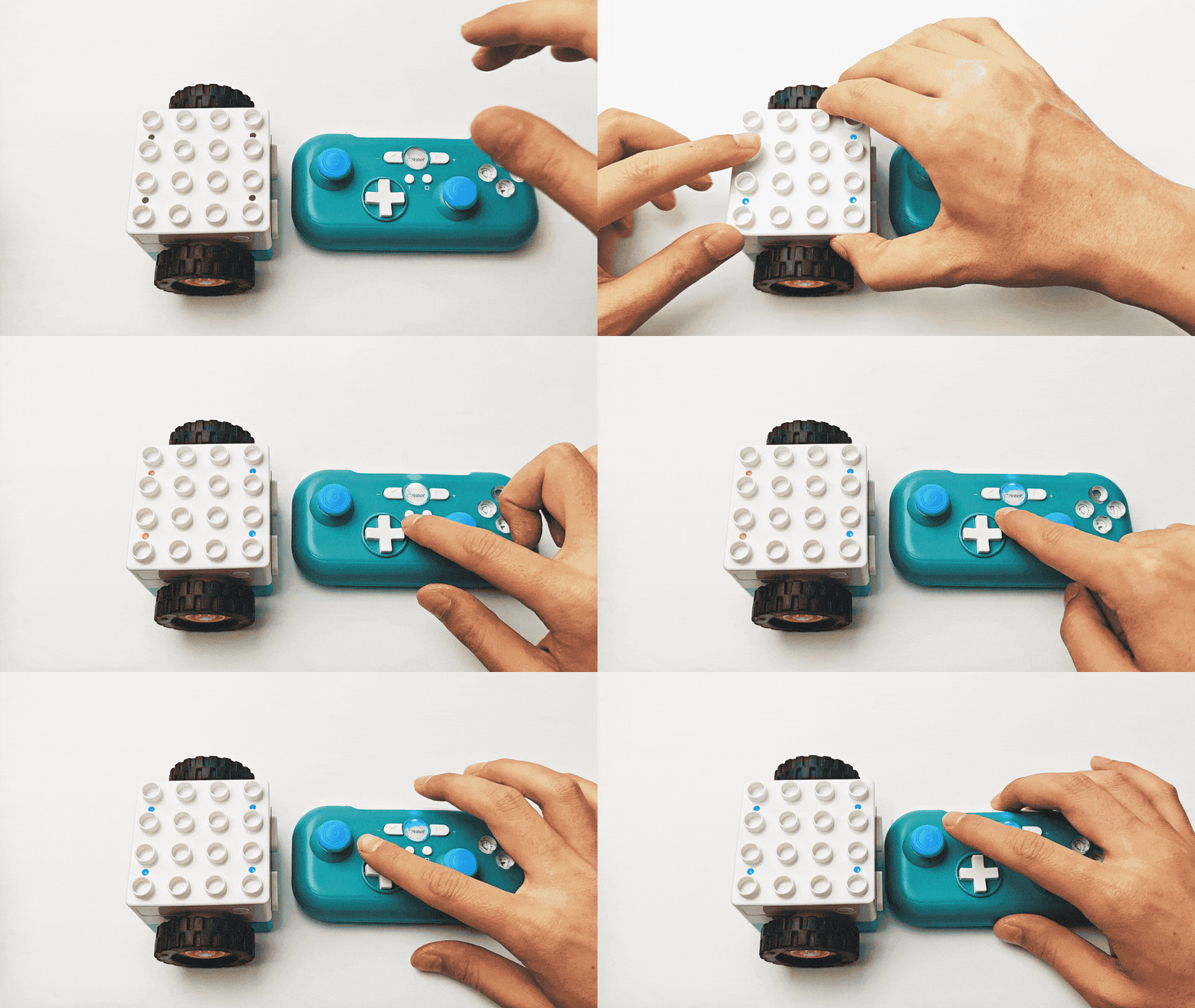
Resetting Bluetooth:
With the controller powered on, press and hold the D Button for 3s until the Home Button turns off.
Restart the controller, and the Home Button will flash green, indicating a successful reset.
Reconnect the controller to a new device as needed.
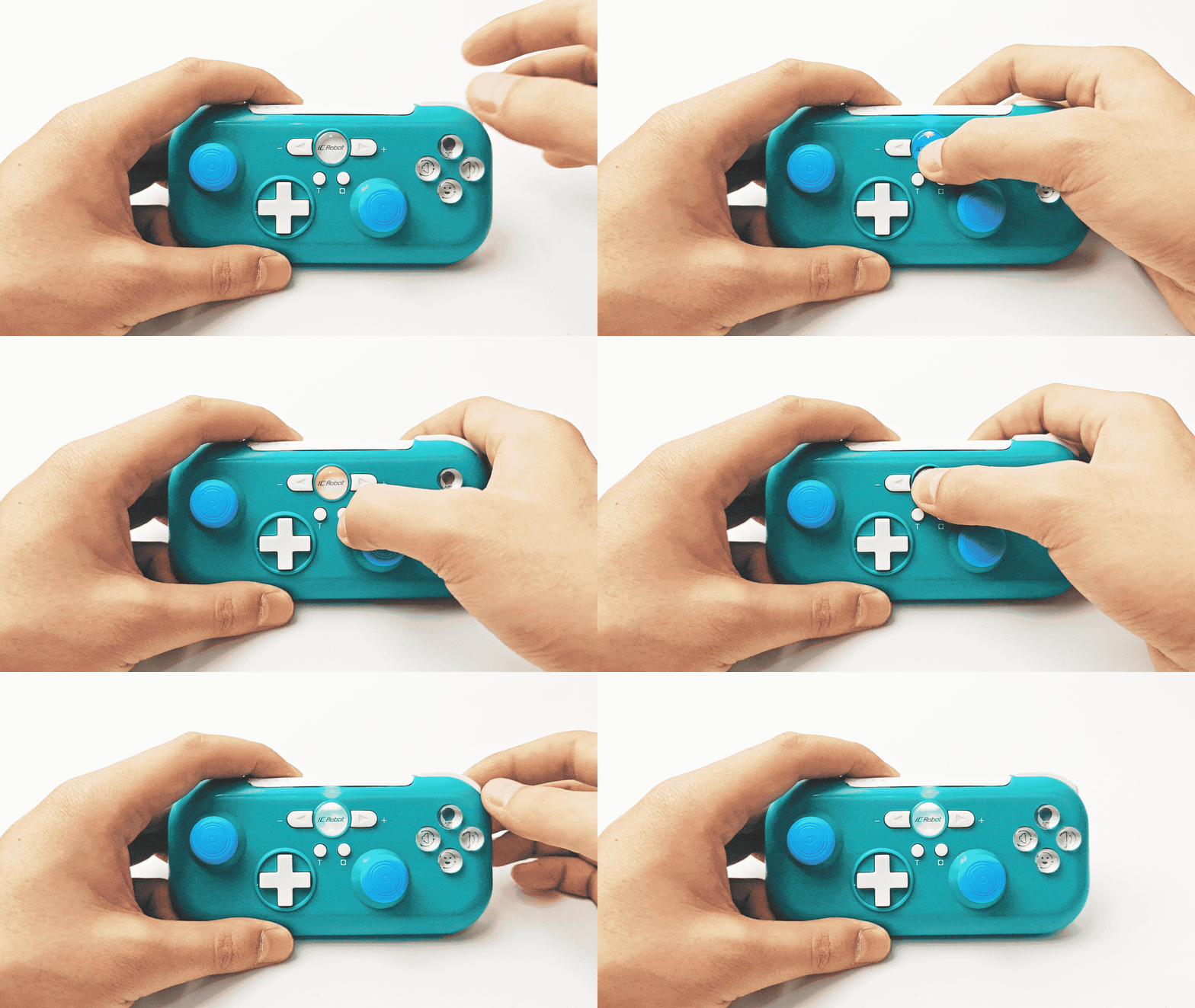
Controlling the Built-in Motor of the Boxy Robot
After a successful Bluetooth connection, push the left joystick forward, backward, left, and right movements to control the robot to move forward, backward, left turn, and right turn; the left joystick returns to the original position and the robot stops moving.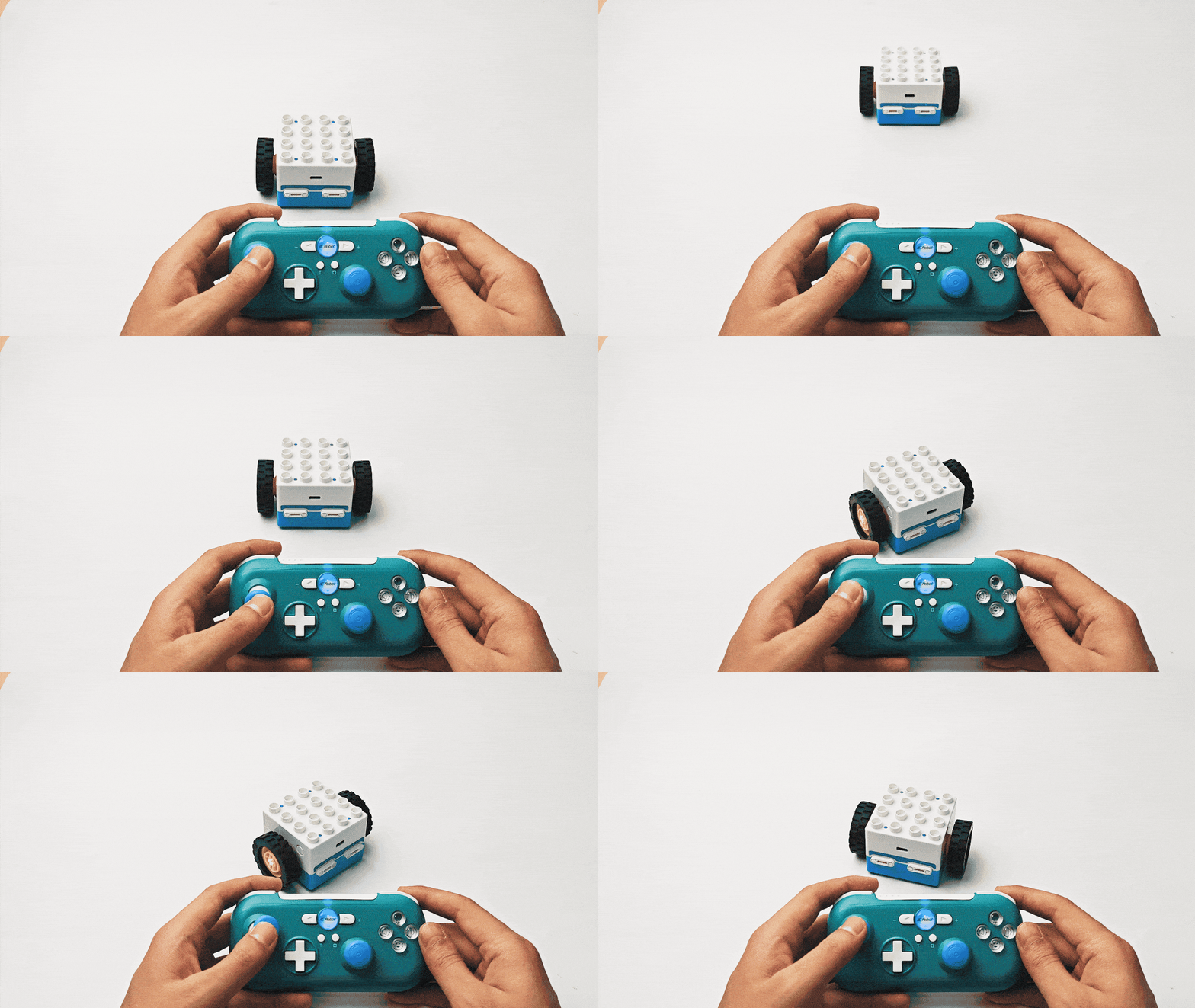
Controlling Actuator Blocks
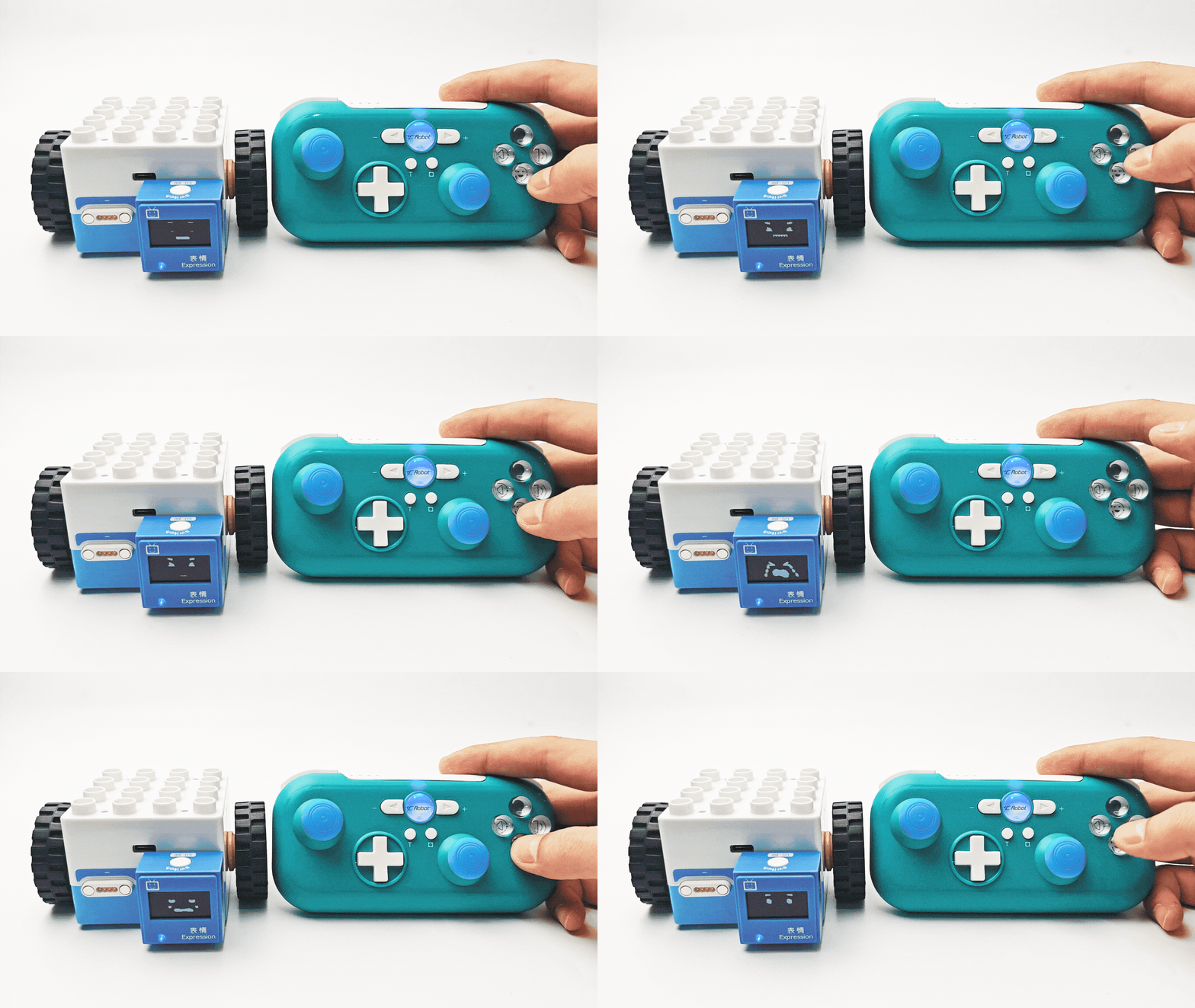
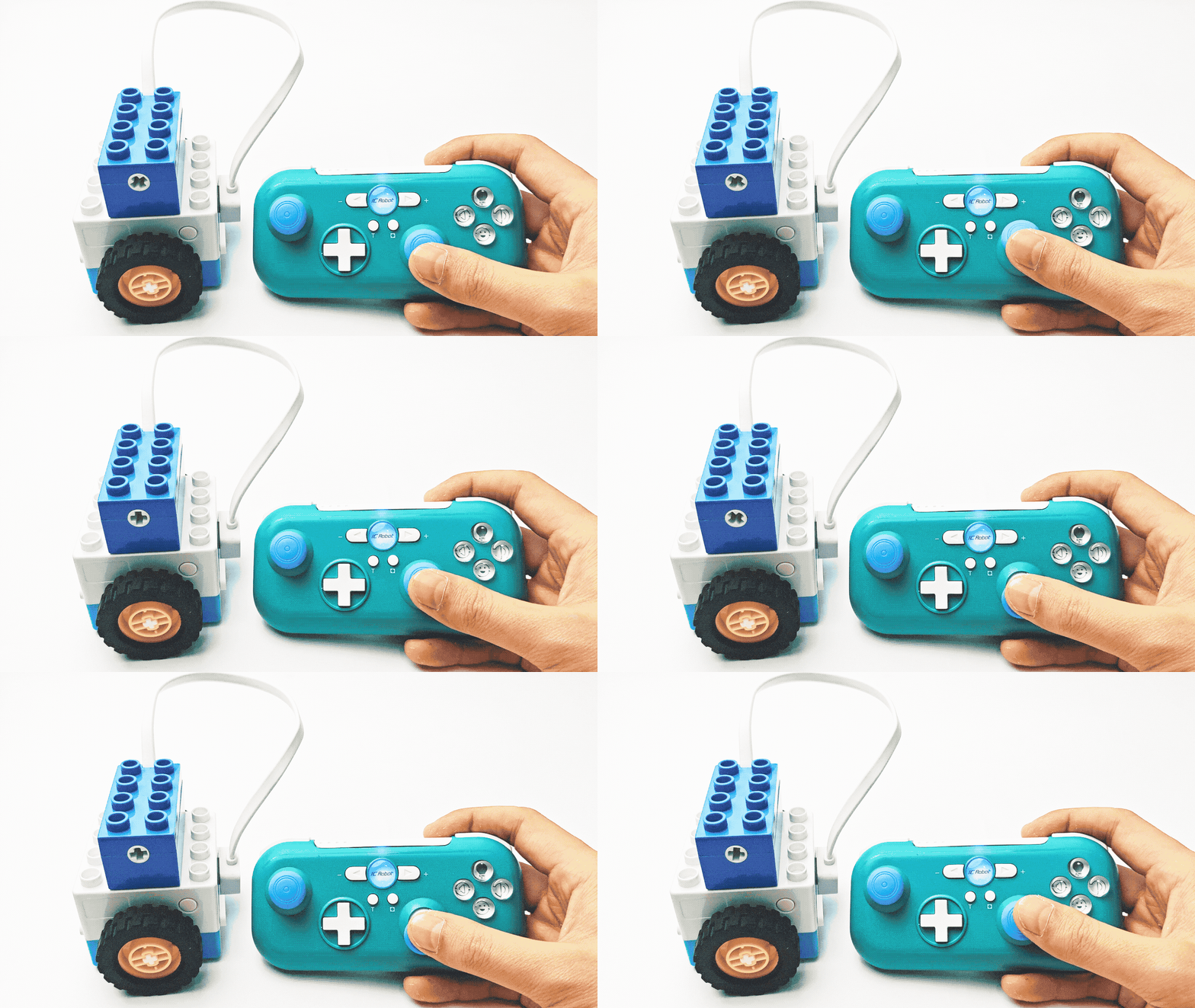
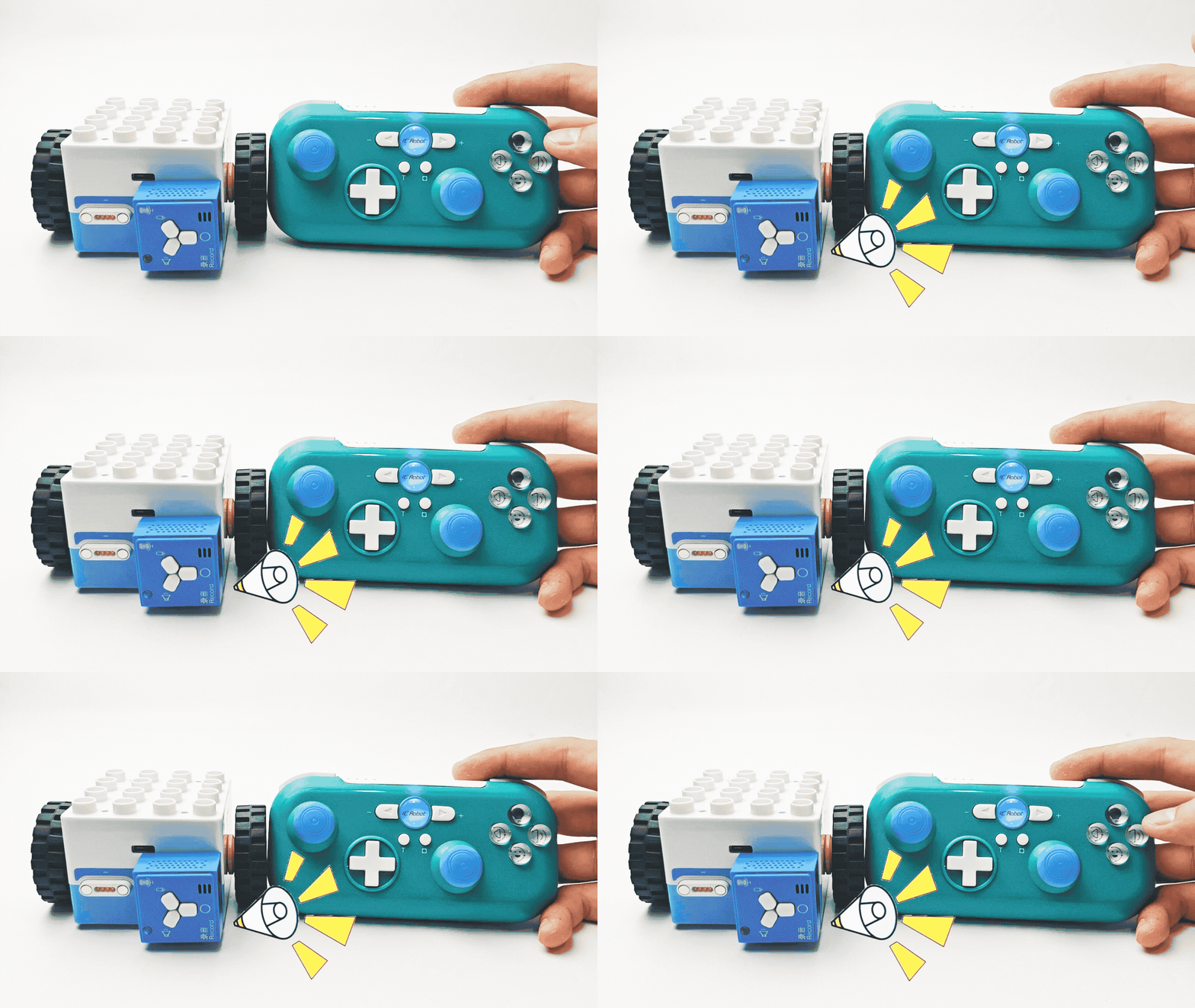
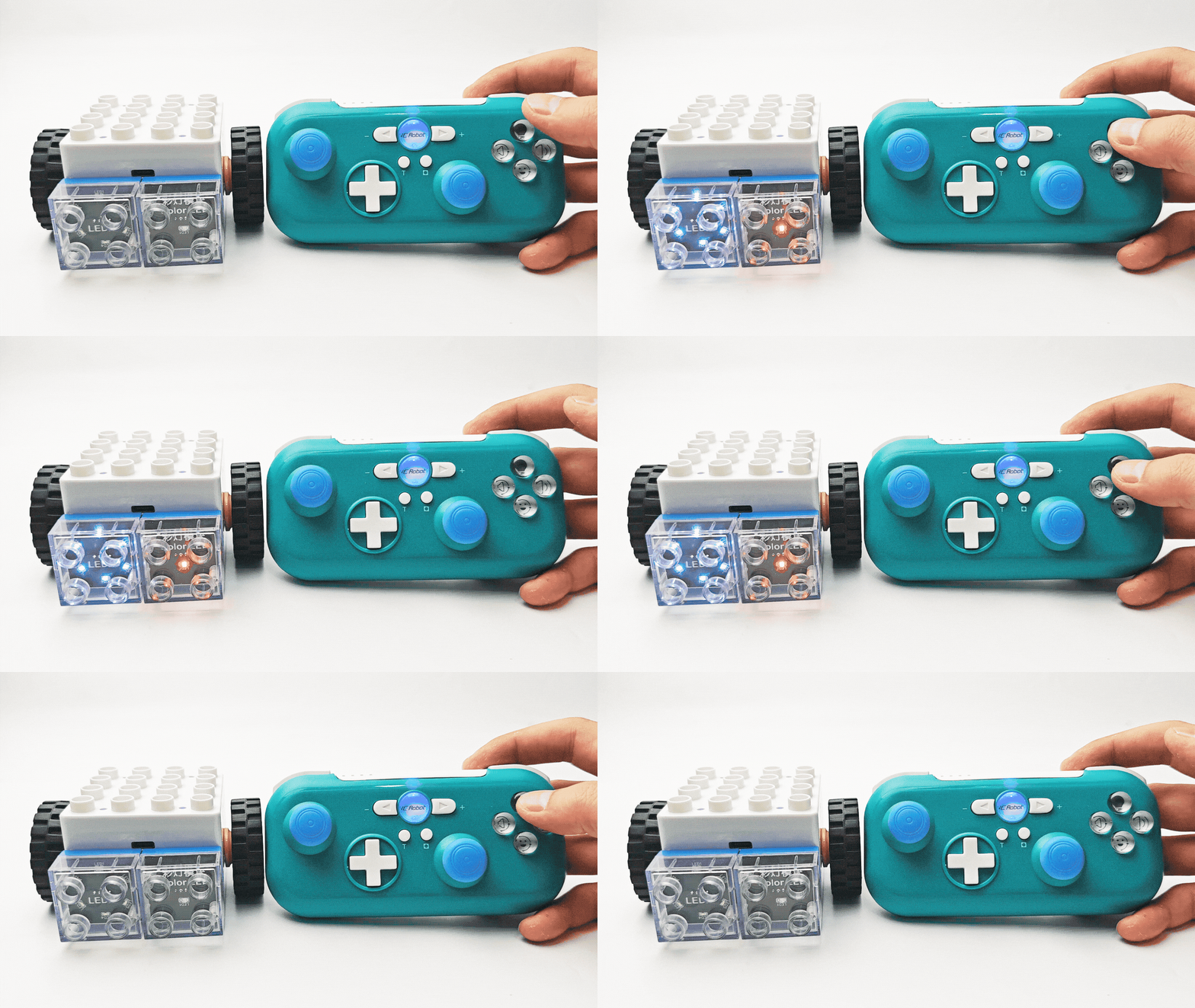
After a successful Bluetooth connection, the ICRobot Multi-function Bluetooth Handle can control actuators such as motors, Color LED Block, Expression Block, LED Block, Record Block, etc. to trigger the corresponding actions.
|
|
|---|---|
ICRobot Multi-function Bluetooth Handle Control Expression Block |
ICRobot Multi-function Bluetooth Handle Control Motors |
|
|
ICRobot Multi-function Bluetooth Handle Control Record Block |
ICRobot Multi-function Bluetooth Handle Control LED Blocks |