ICRobot Multifunctional Bluetooth Controller Firmware Upgrade
Online Upgrade
Preparation
1.Software Preparation
Download and install the CH340 driver on your computer. Use the following links:
Windows Driver:https://www.wch.cn/download/CH341SER_EXE.html
Linux Driver:https://www.wch.cn/download/CH341SER_LINUX_ZIP.html
Mac Driver:https://www.wch.cn/downloads/CH34XSER_MAC_ZIP.html
Android Driver:https://www.wch.cn/download/CH341SER_ANDROID_ZIP.html
2.Hardware Preparation
|
|
|---|---|
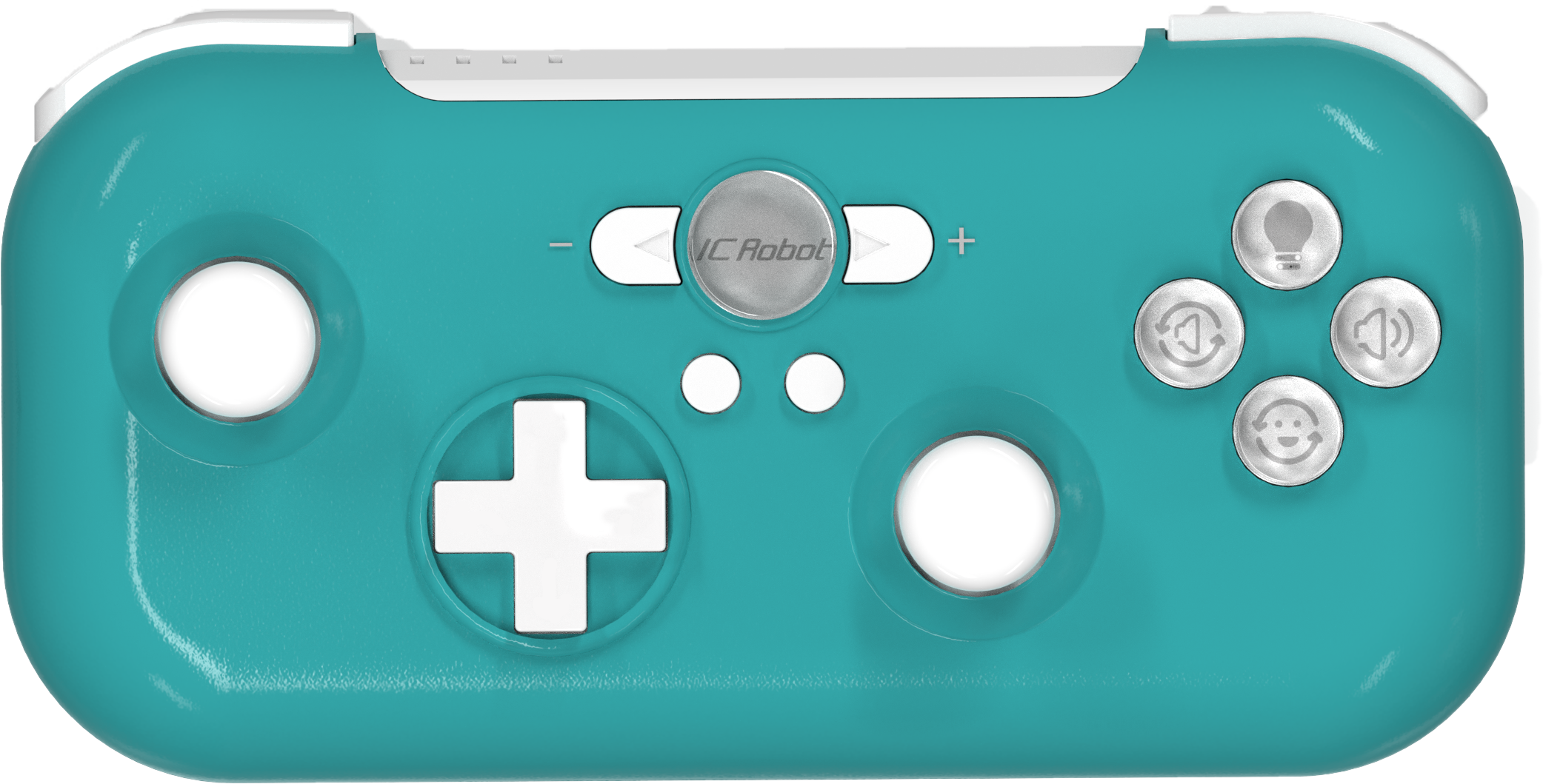
ICRobot Multifunctional Bluetooth Controller × 1 |
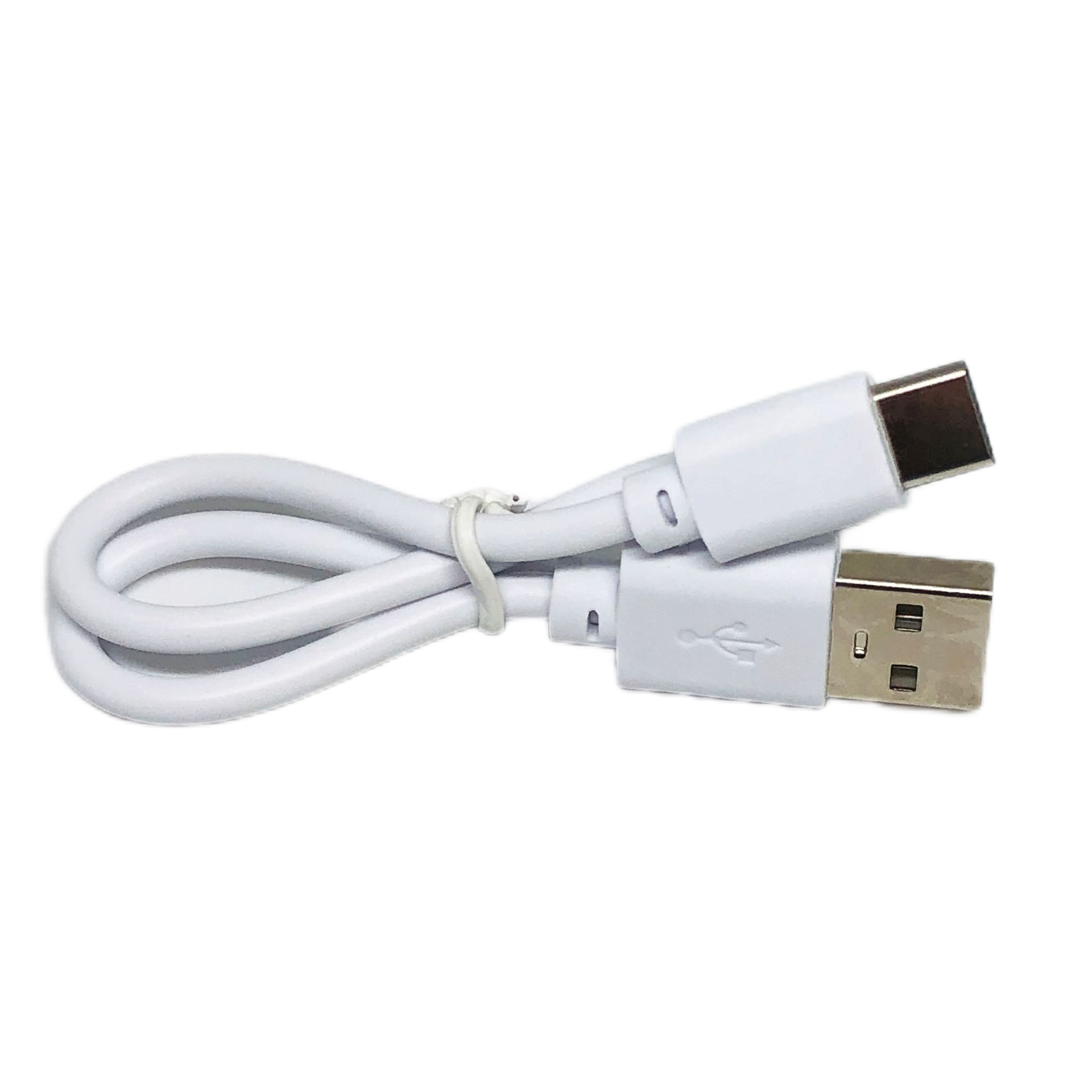
USB-C Data Cable x 1 |
Upgrade Steps
|
|
|---|---|
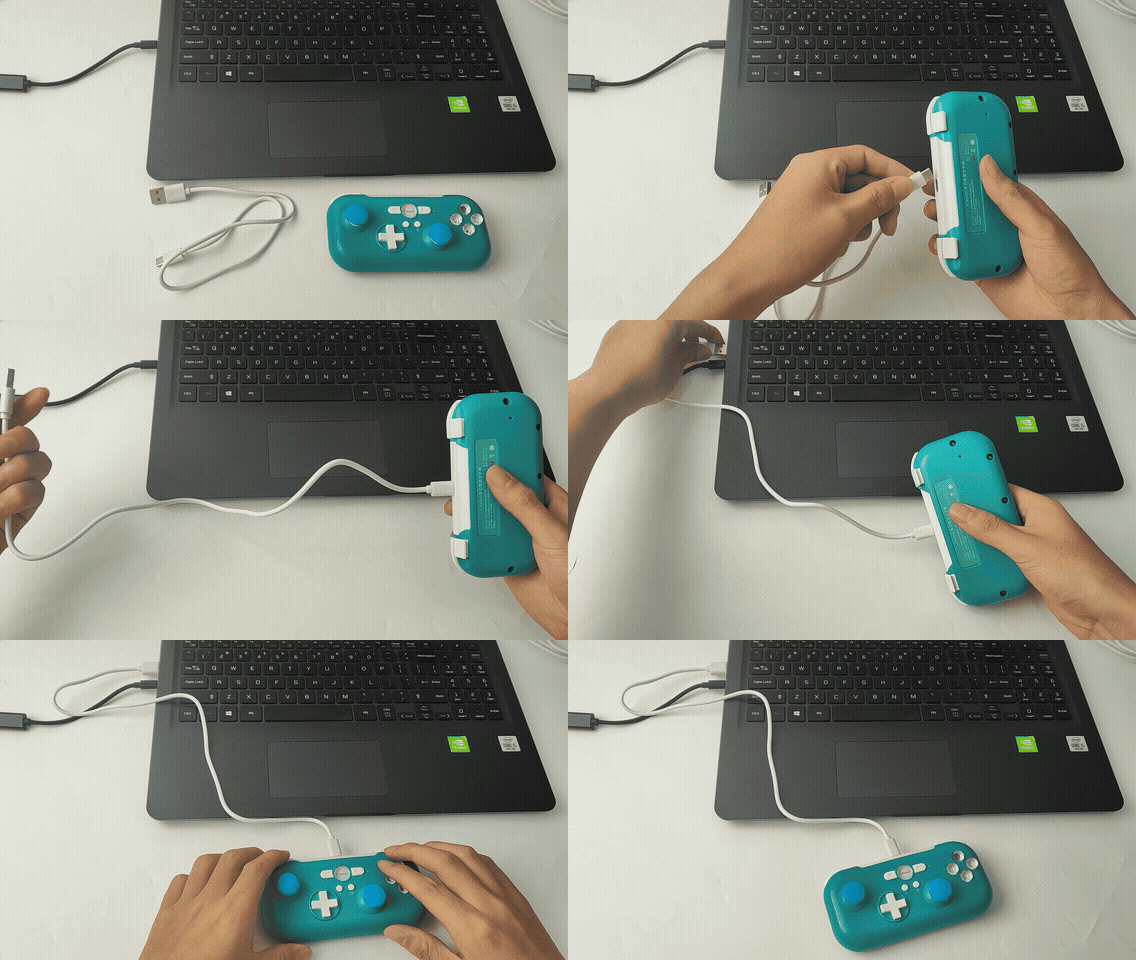
① Connect the ICRobot Multifunctional Bluetooth Controller to the computer using a USB-C cable. |
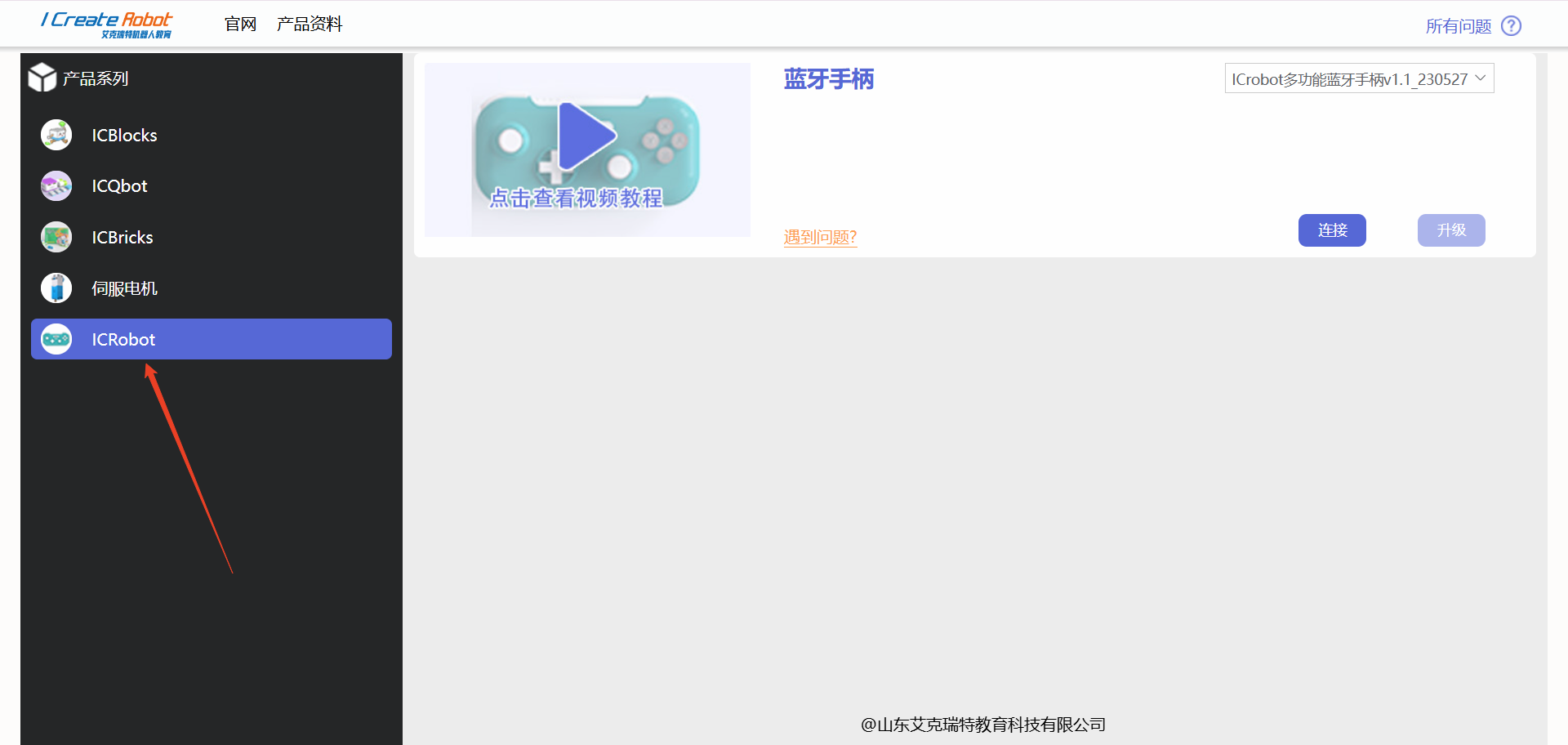
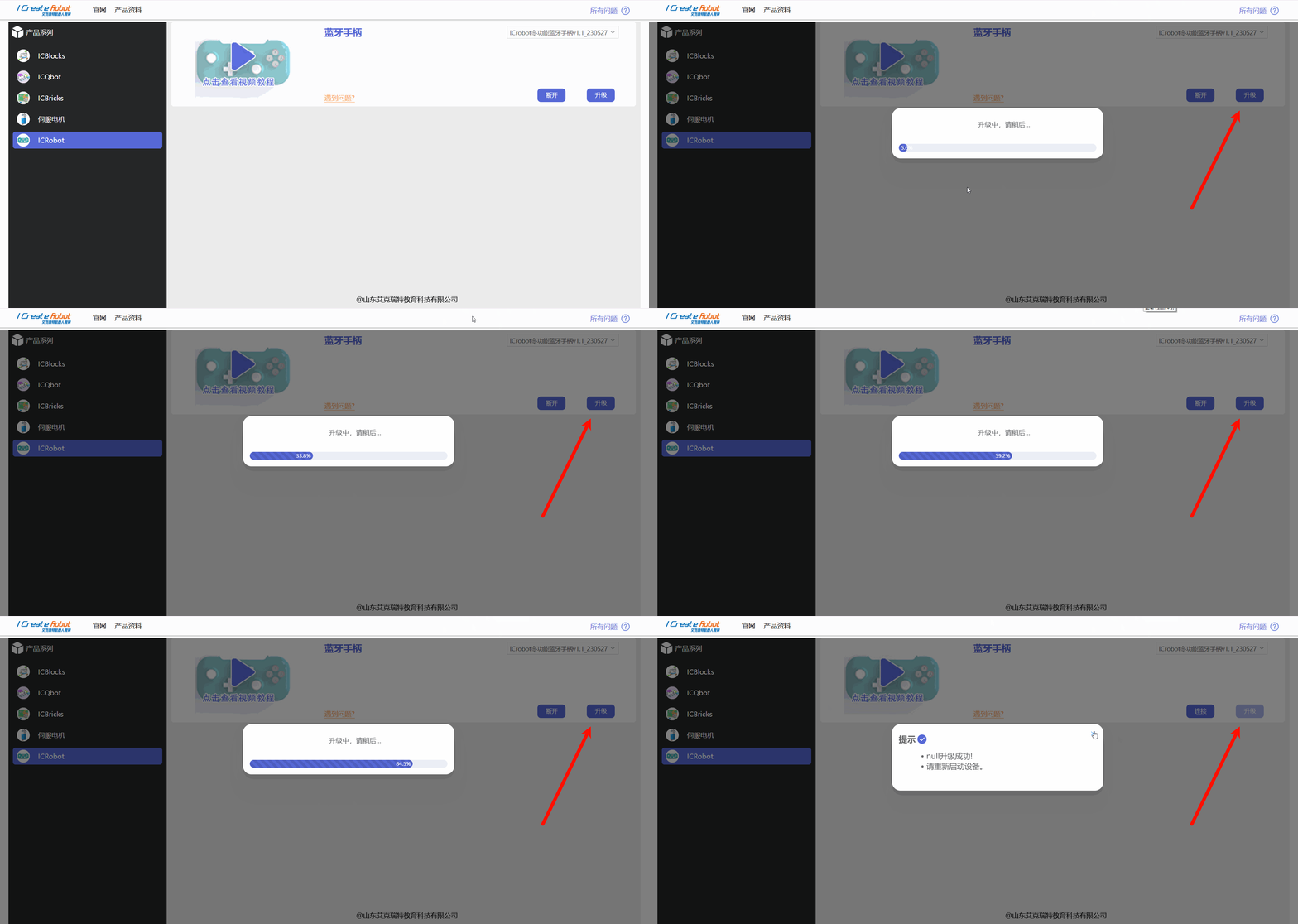
② Open the firmware upgrade platform in Chrome or Microsoft Edge browser, and select the ICRobot Series on the left side. |
|
|
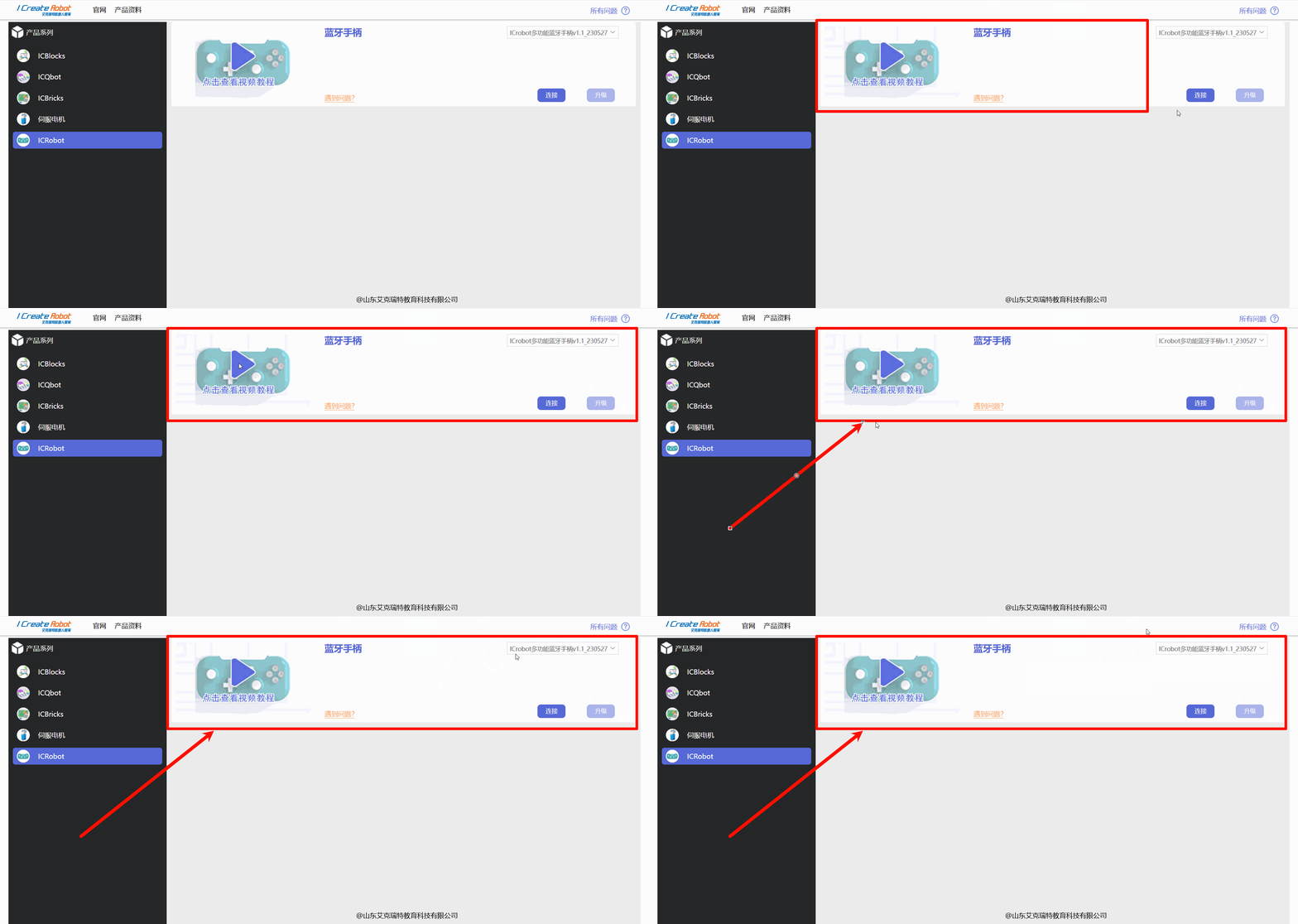
③Locate the Bluetooth Controller on the right side, expand the drop-down menu to view the firmware upgrade options. |
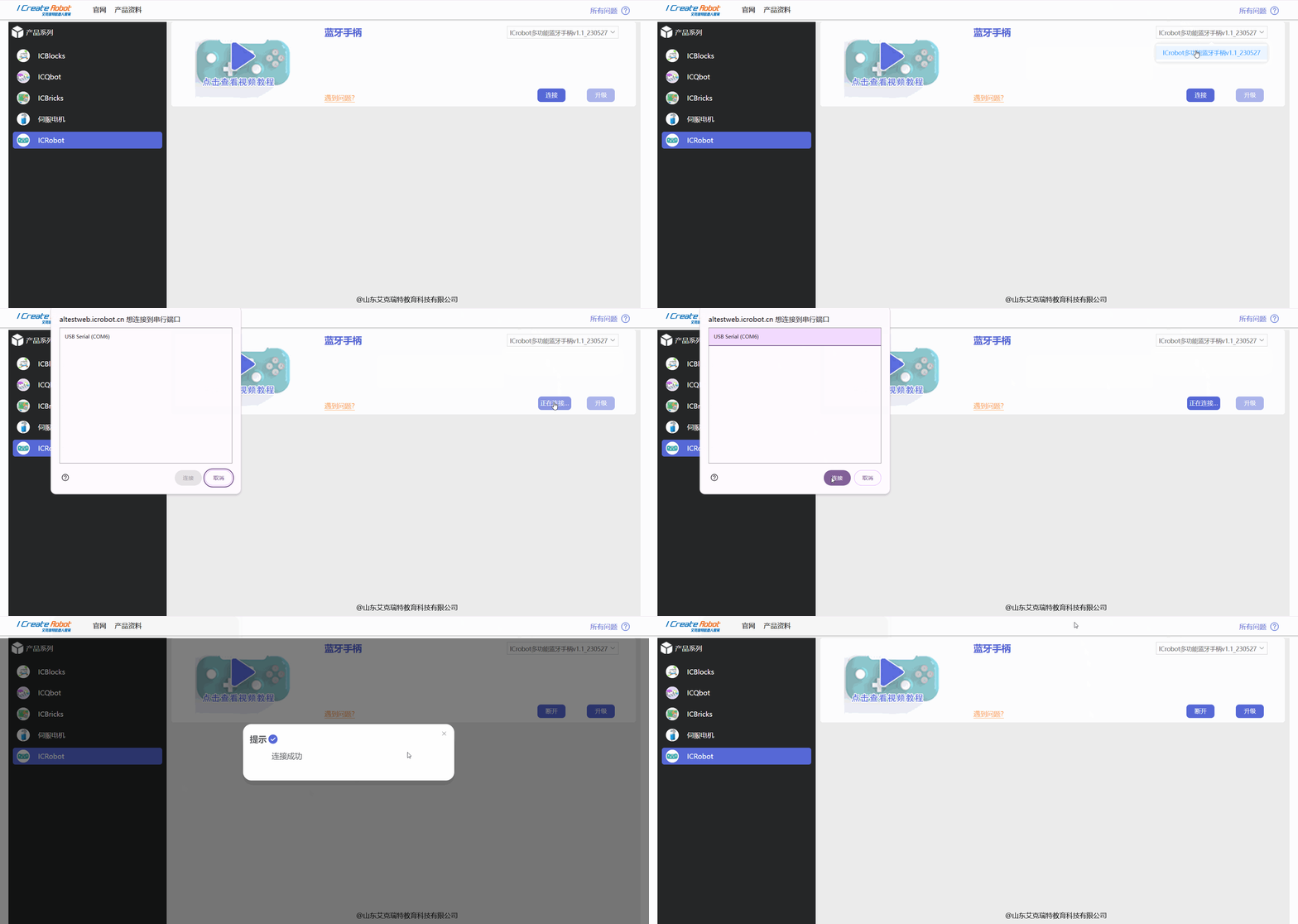
④ Select the firmware version to upgrade, click Connect, select the device’s COM port, and wait for the connection to succeed. |
|
|
⑤ Click Upgrade. Once the page displays “Upgrade Successful,” restart the device to complete the upgrade. |
Local Upgrade
Preparation
Software Preparation
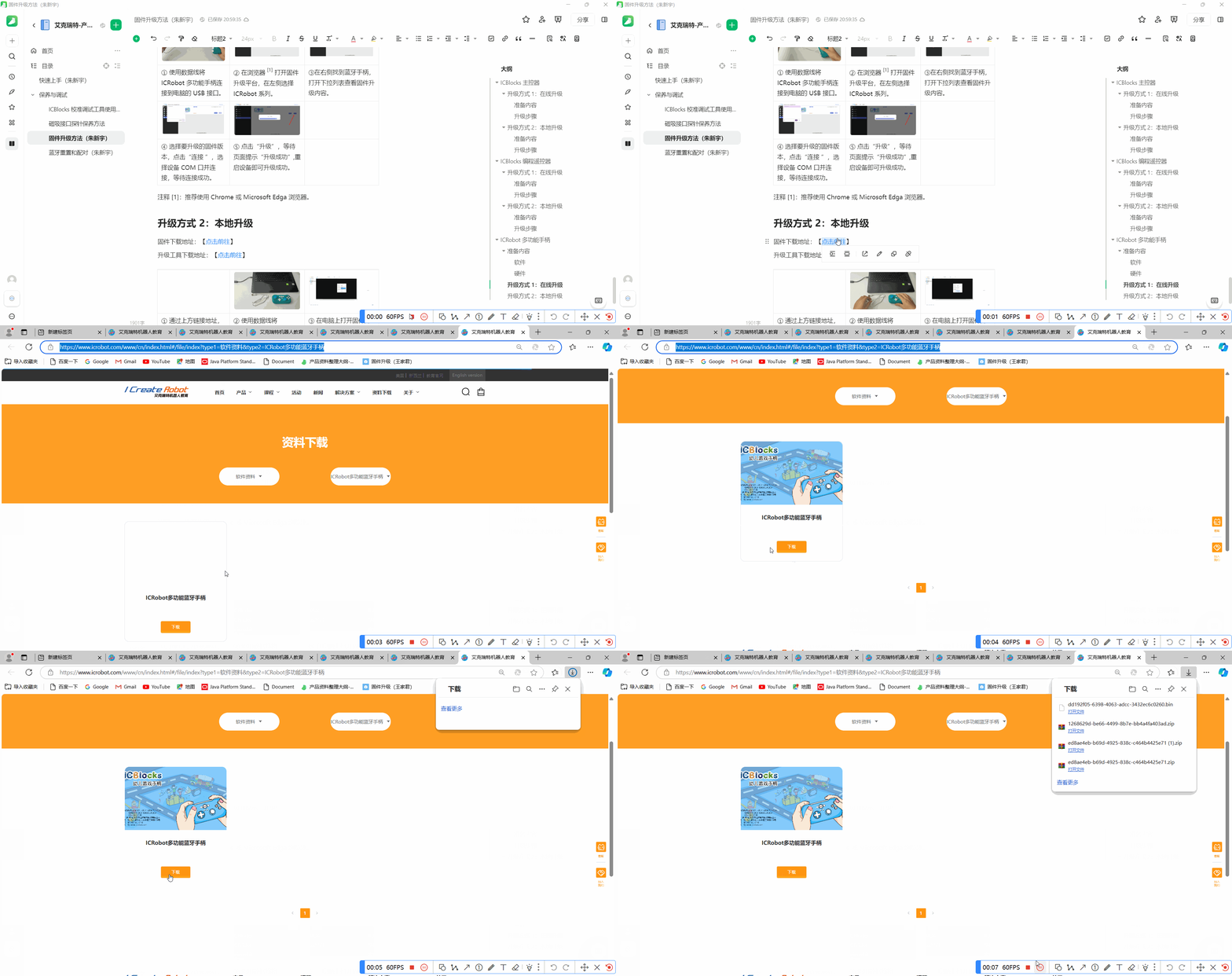
Firmware download link: [Download Here]
Download the upgrade tool: [Download Here]
Hardware Preparation
|
|
|---|---|
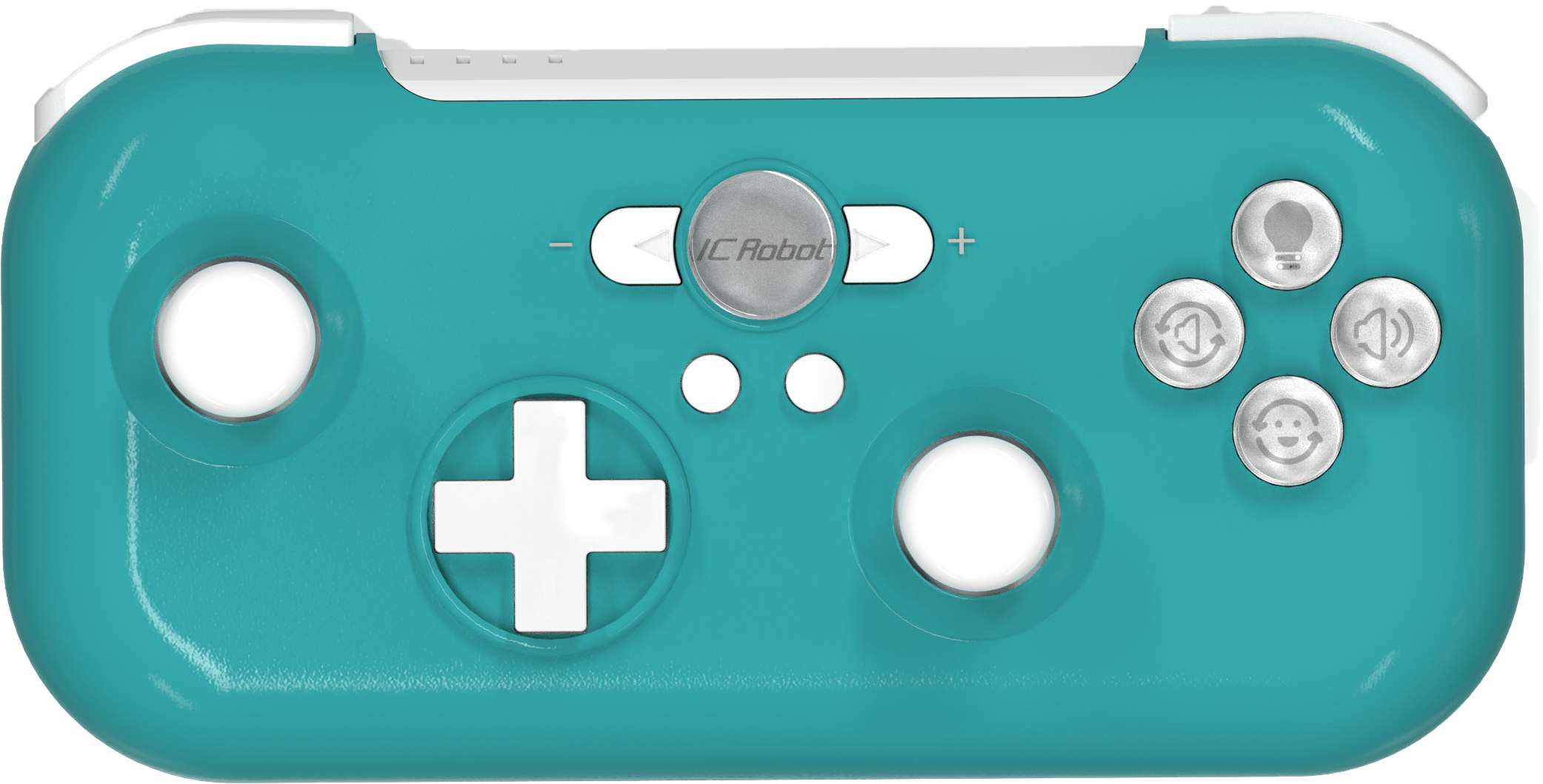
ICRobot Multifunctional Bluetooth Controller × 1 |
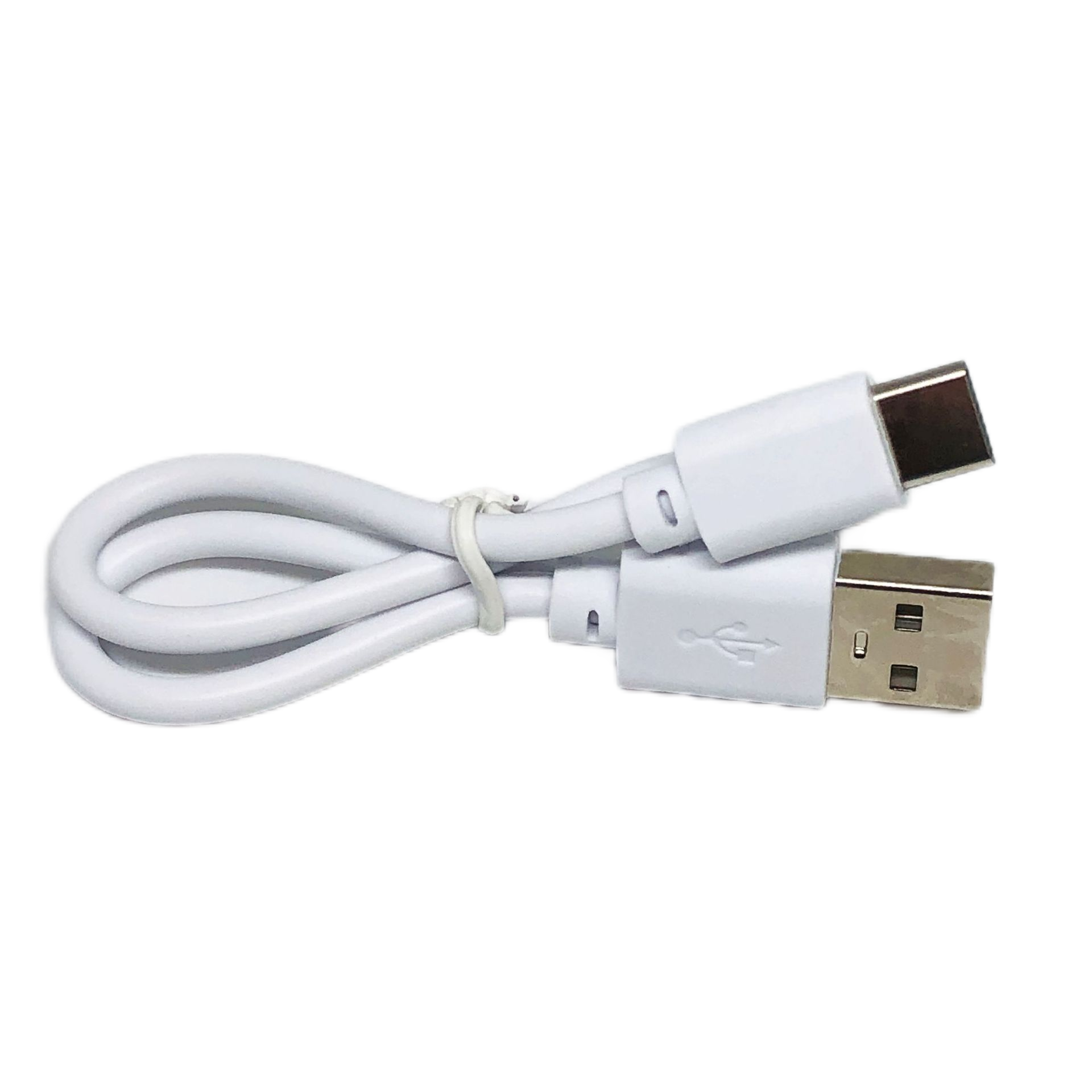
USB-C Data Cable x 1 |
Upgrade Steps
|
|
|---|---|
① Download the firmware file and upgrade tool from the provided links. |
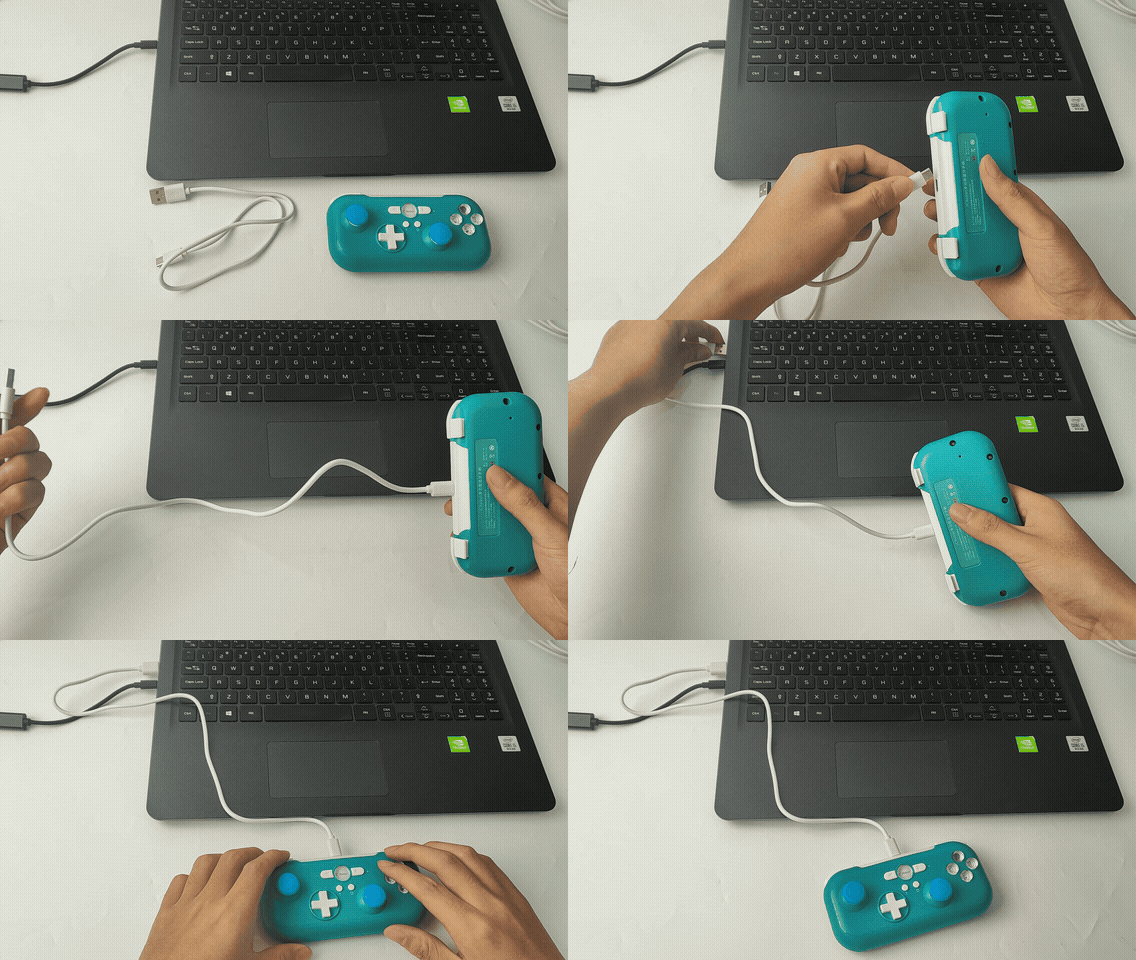
② Connect the ICRobot Multifunctional Bluetooth Controller to the computer using a USB-C cable. |
|
|
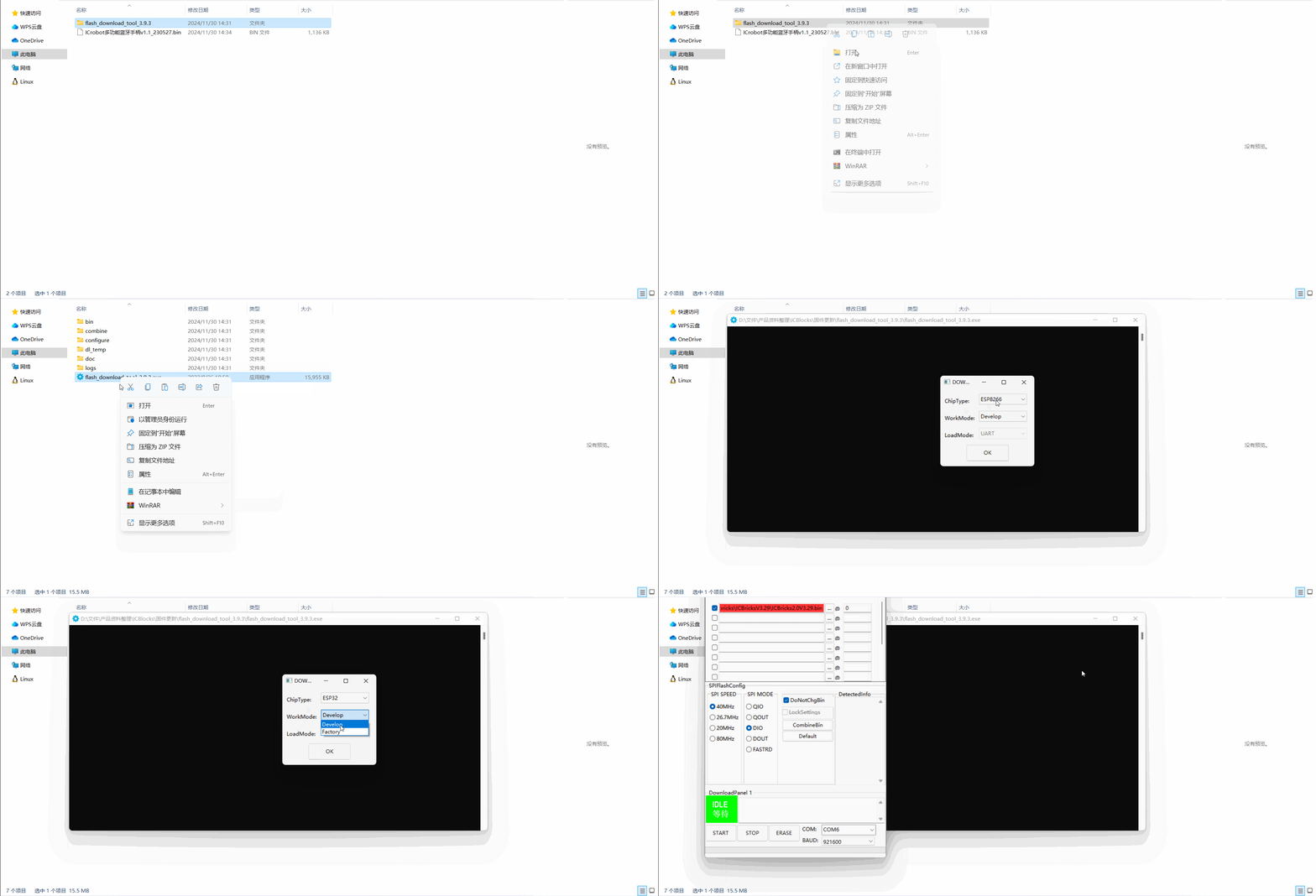
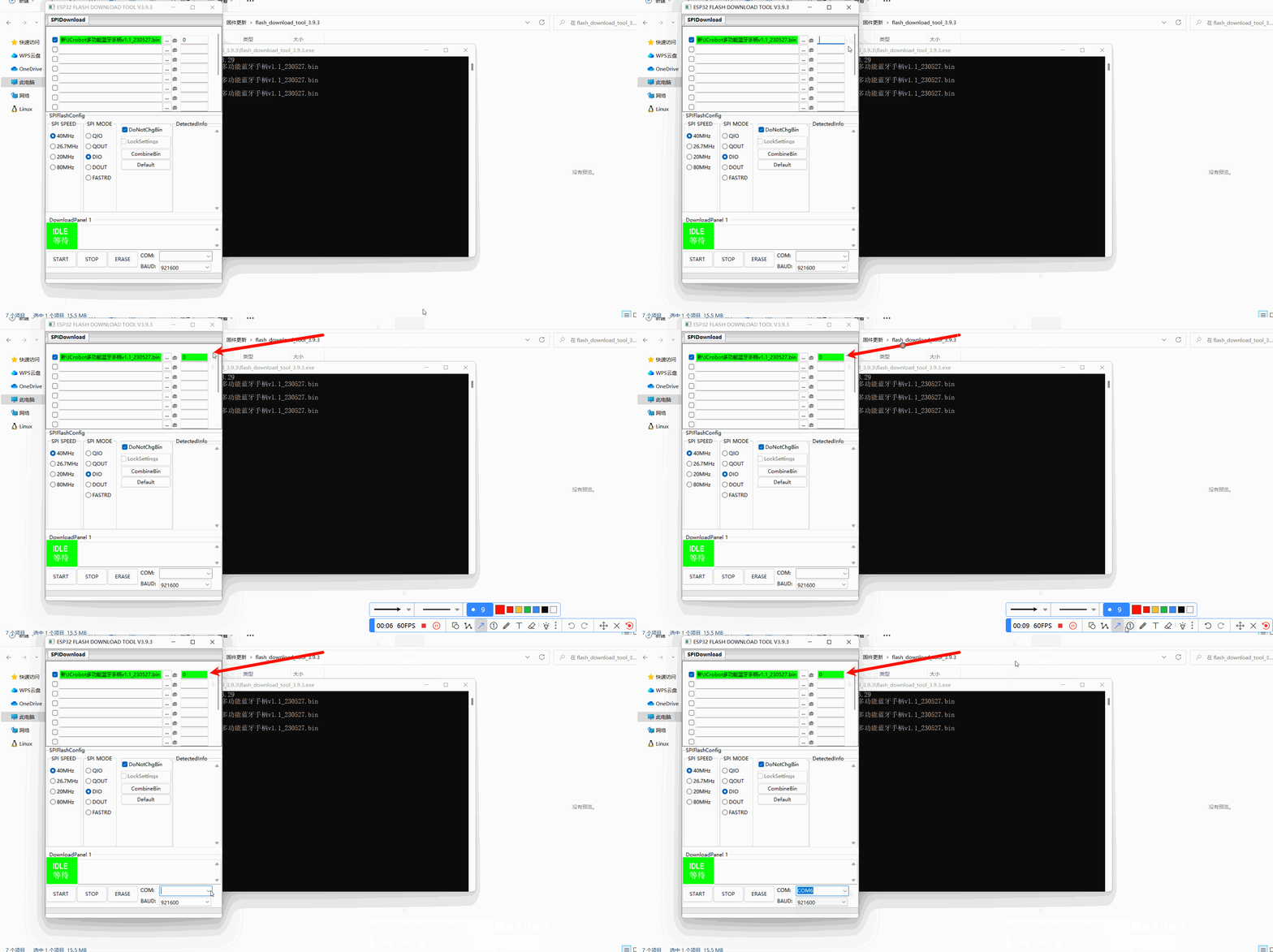
③ Open the firmware upgrade tool on your computer. (Do not close the black console window after opening the tool!) Select Esp32 as the “ChipType,” and Develop as the “WorkMode,” then click OK. |
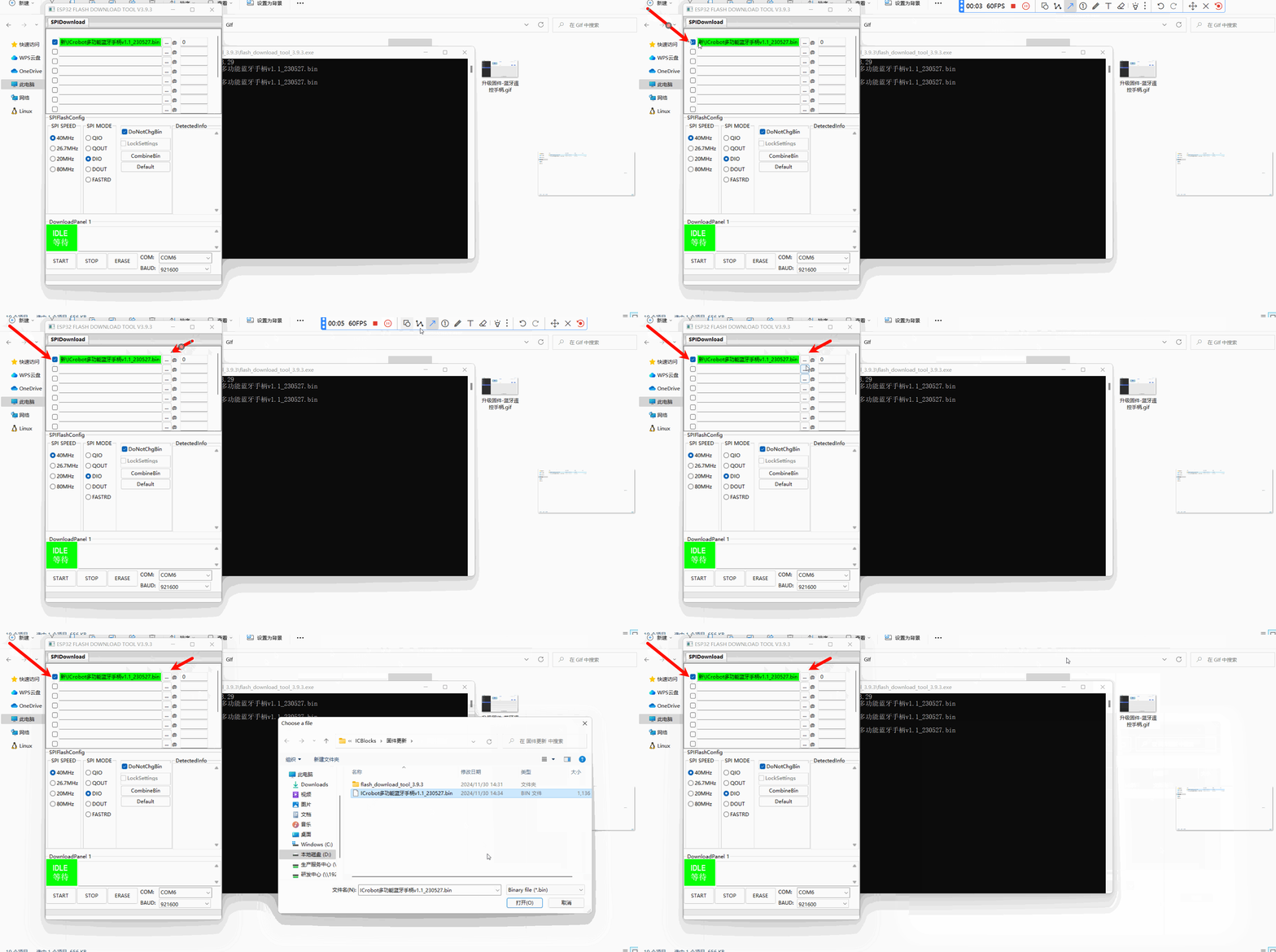
④ Ensure the first row is checked. Click the ?.. ?, select the downloaded firmware file in the pop-up dialog box, and click Open. |
|
|
⑤ Enter “0” in the last input box of the first row. Choose the device’s COM port. If unsure about the COM port, disconnect the device from the computer and check which COM port disappears. Reconnect the device to identify the new COM port. |
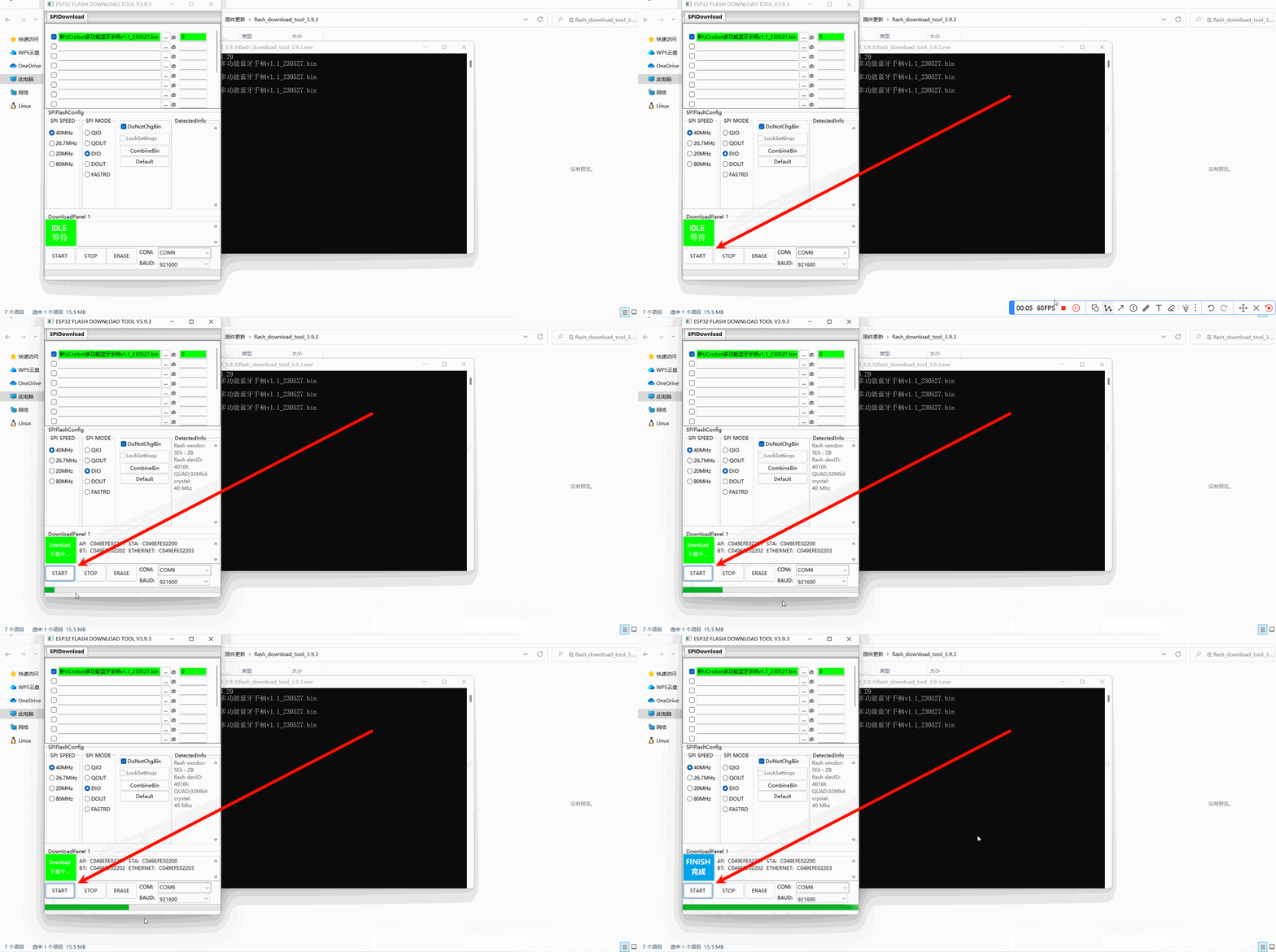
⑥ Click “START” to start the firmware upgrade, wait for the prompt to upgrade successfully, and restart the device to complete the firmware upgrade. |