Coding Board Firmware Upgrade
Online Upgrade
Preparation
Software Preparation
Upgrade website: https://update.icrobot.cn/
(Recommended browsers: Chrome or Microsoft Edge)Hardware Preparation
|
|
|
|---|---|---|
ICBlocks Coding Board x1 |
USB-C Data Cables x2 |
ICLink 2.0 Upgrade Tool x1 |
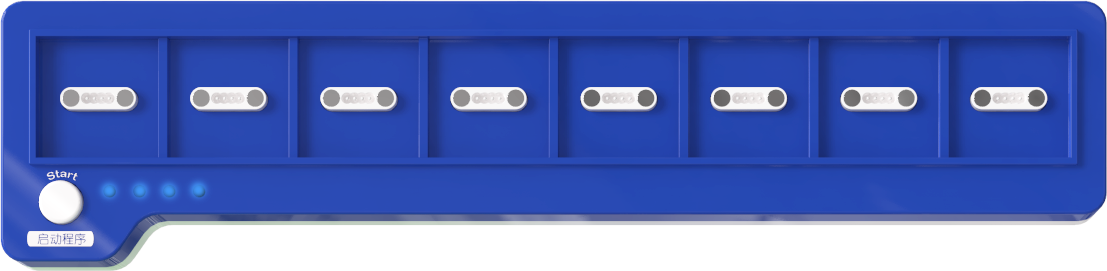
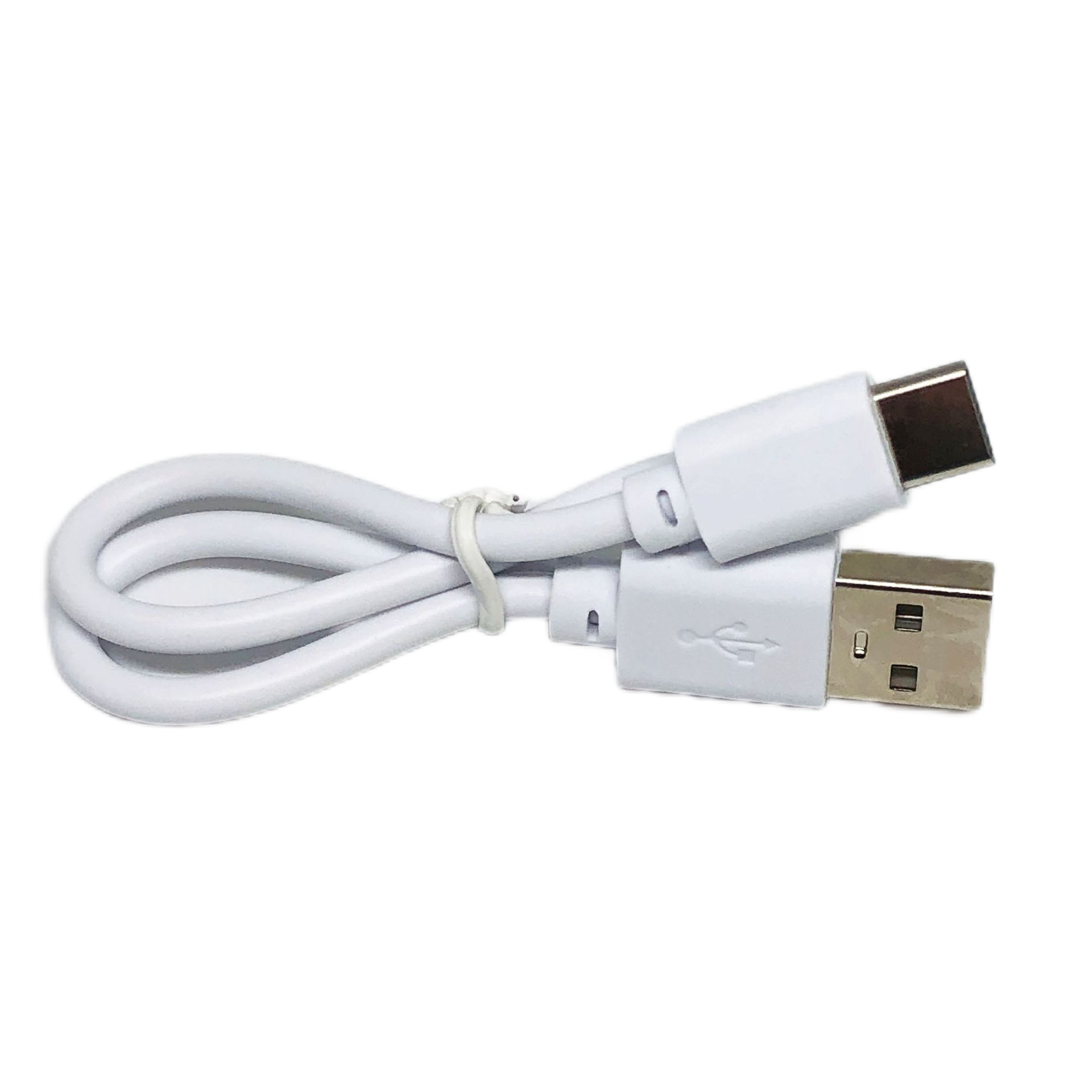
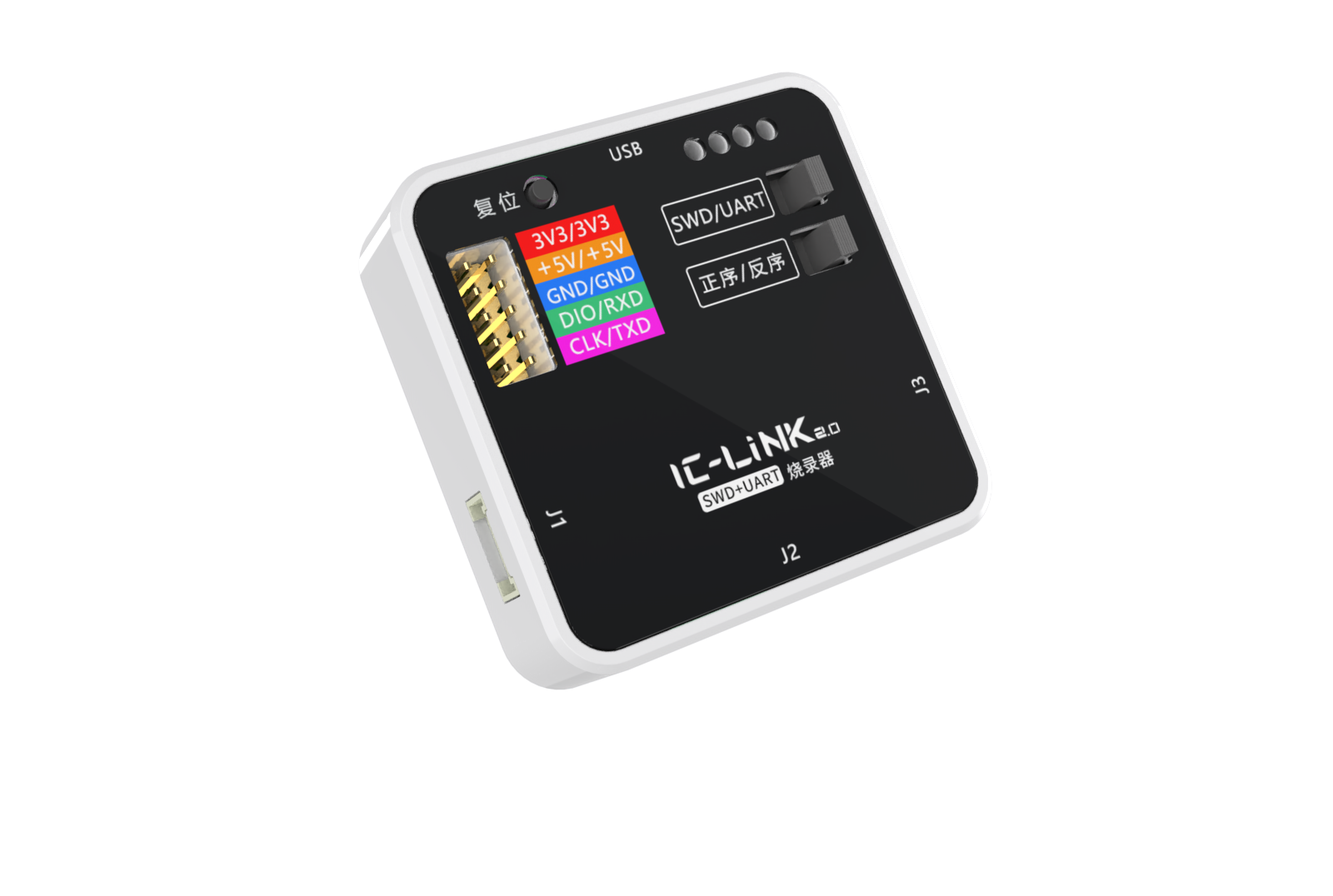
Upgrade Steps
|
|
|---|---|
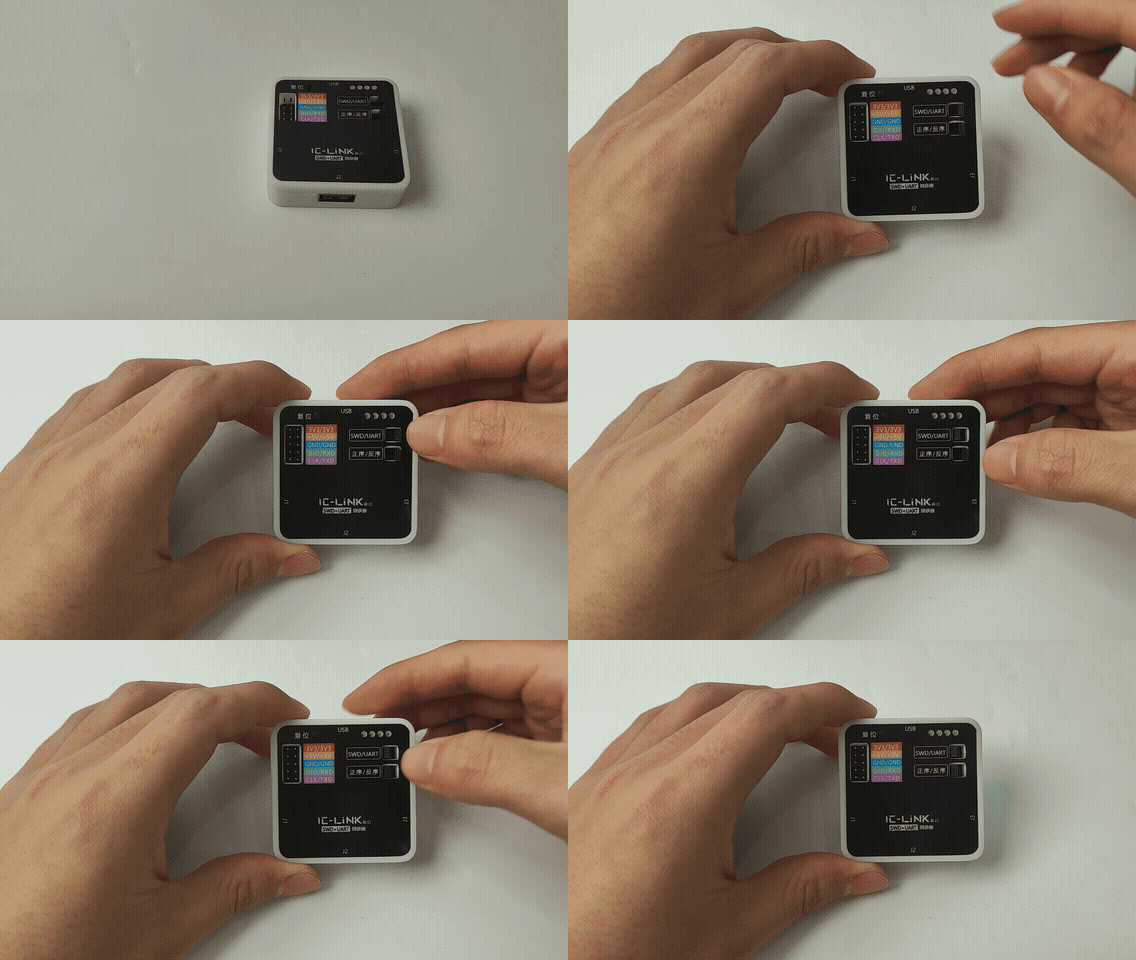
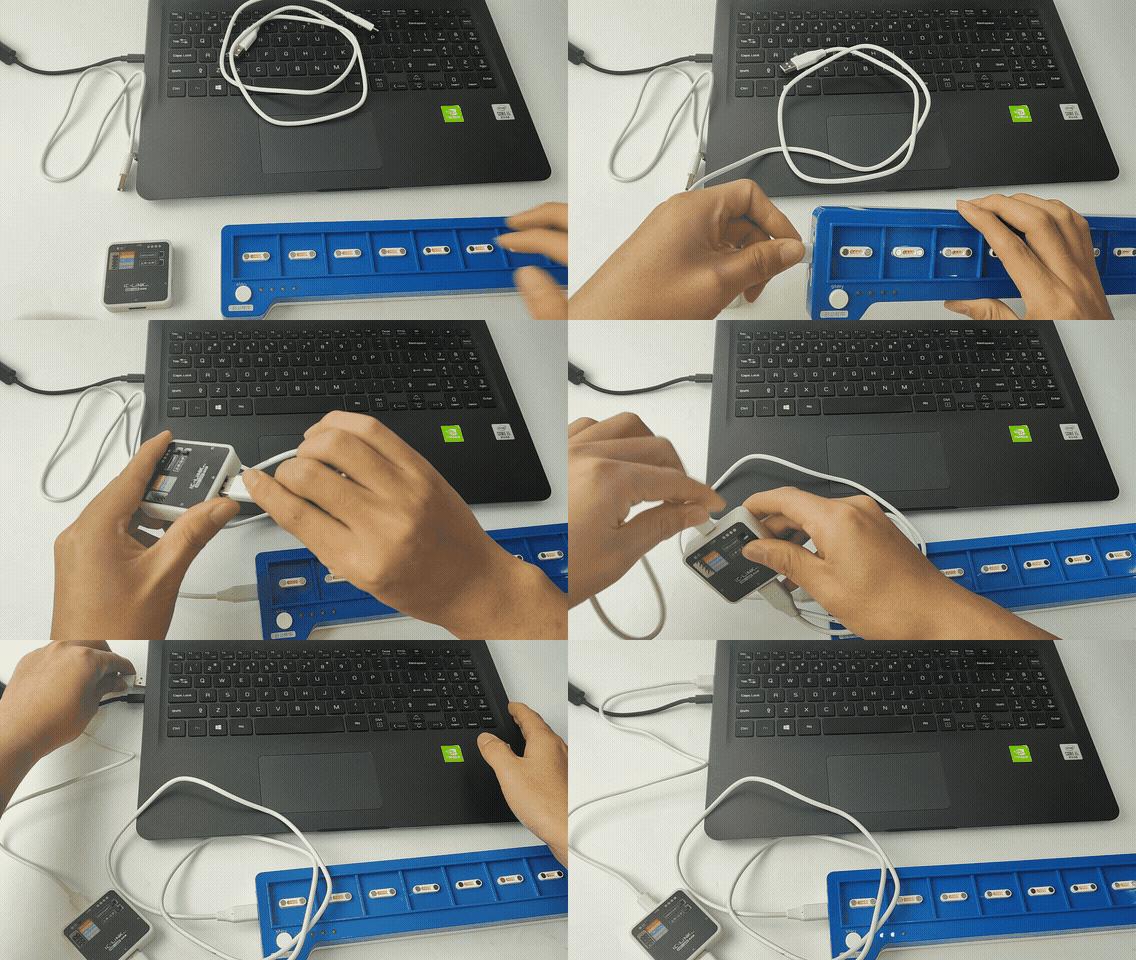
① Toggle the switch on the ICLink 2.0 to the SWD/Forward position. |
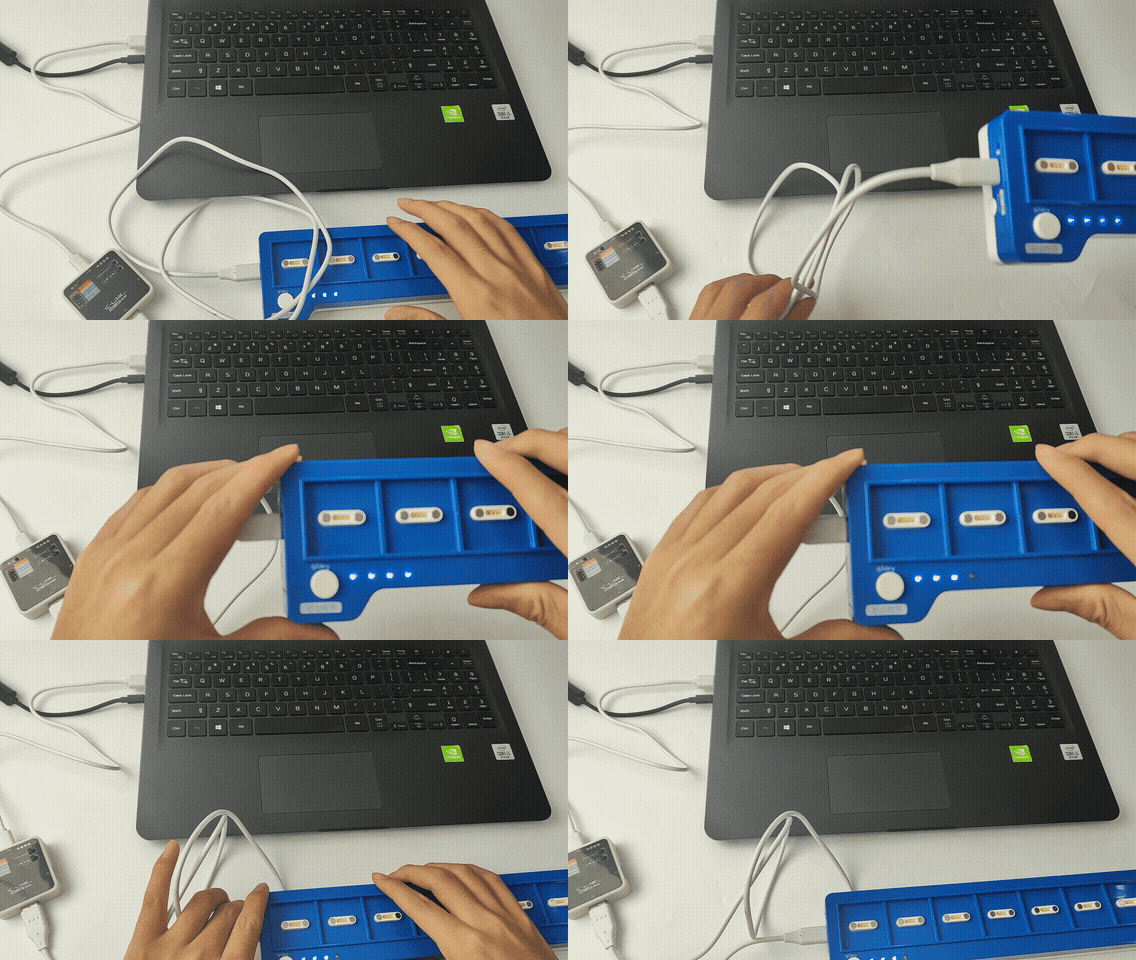
② Connect the ICLink 2.0 to the ICBlocks coding board using one USB-C cable, then connect the ICLink 2.0 to your PC via USB using the second USB-C cable. |
|
|
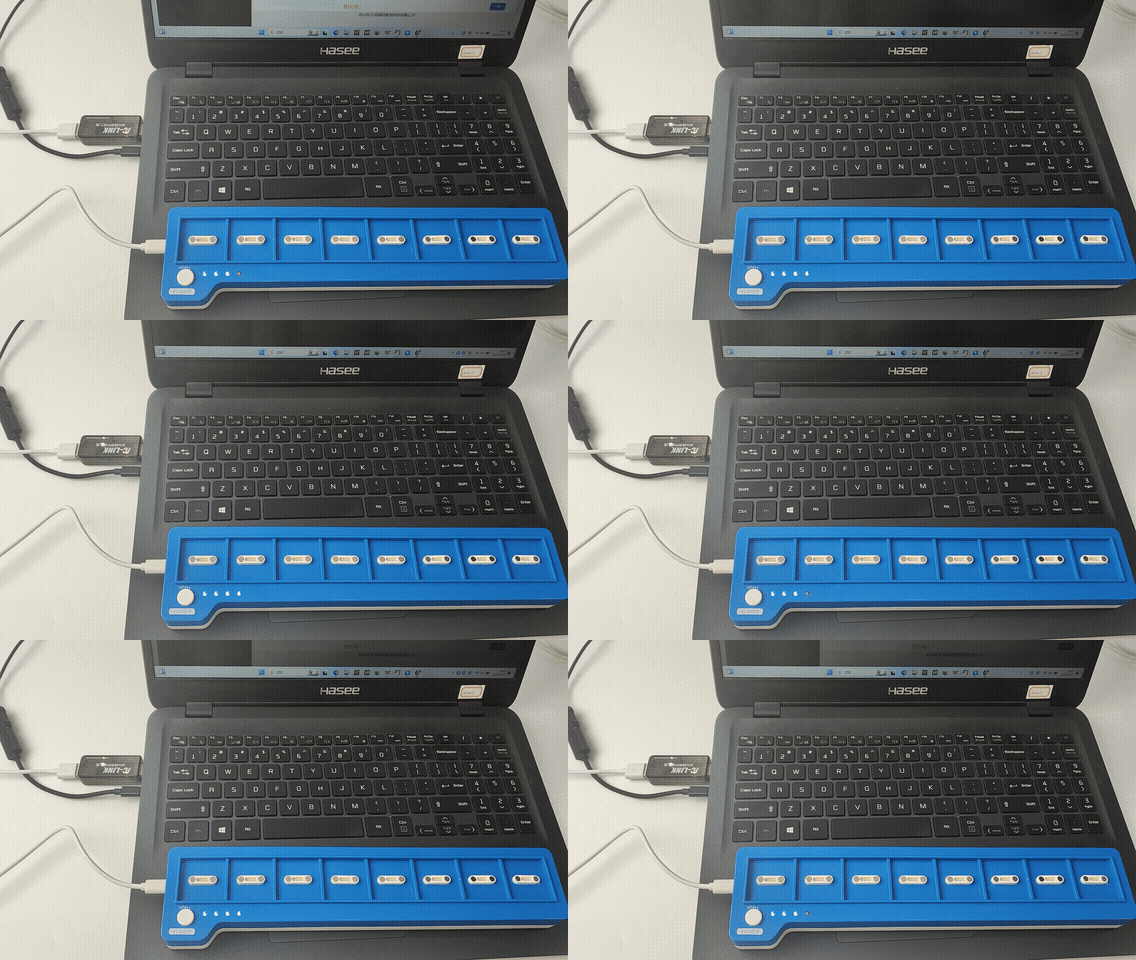
③ Once connected, the coding board’s indicator light will show a charging status. |
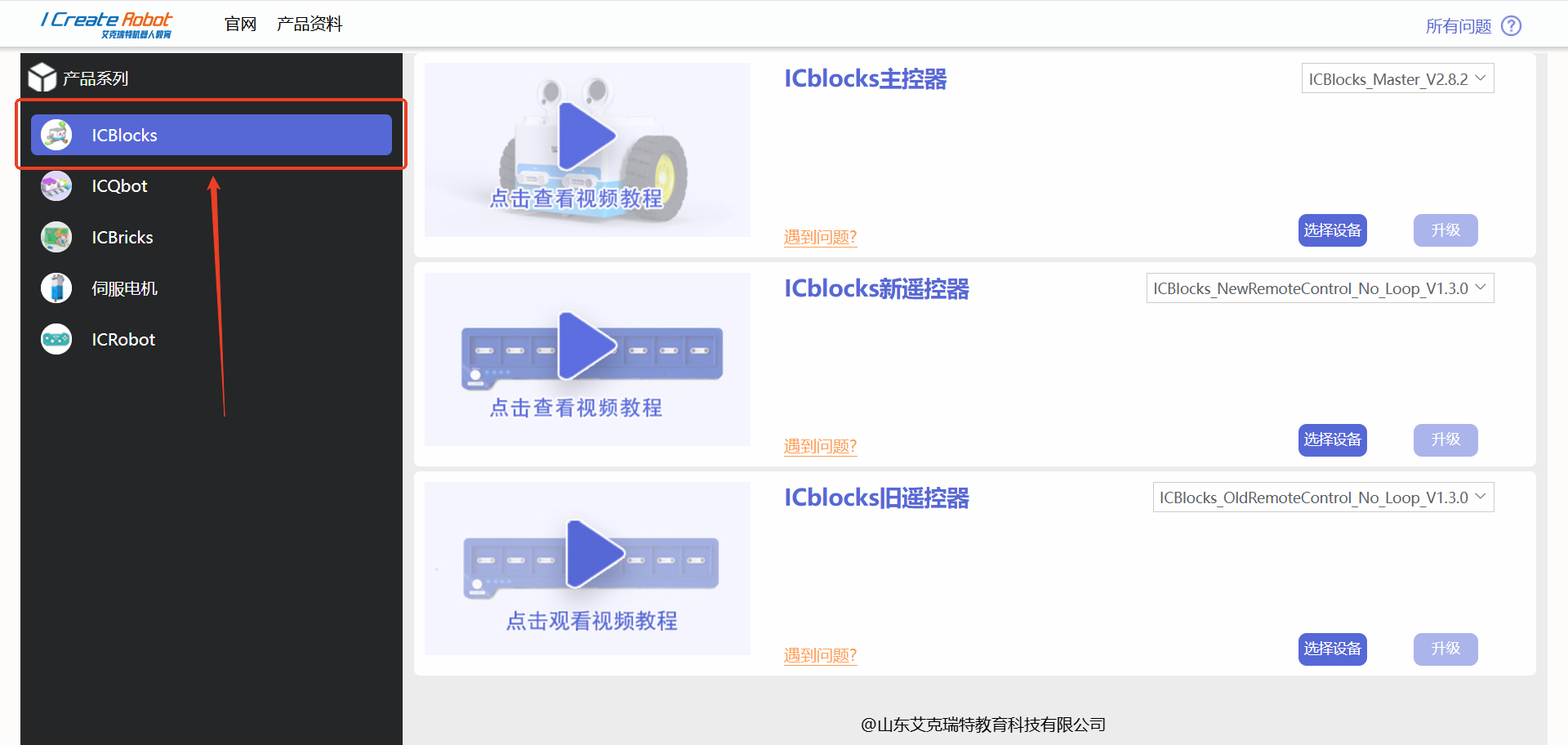
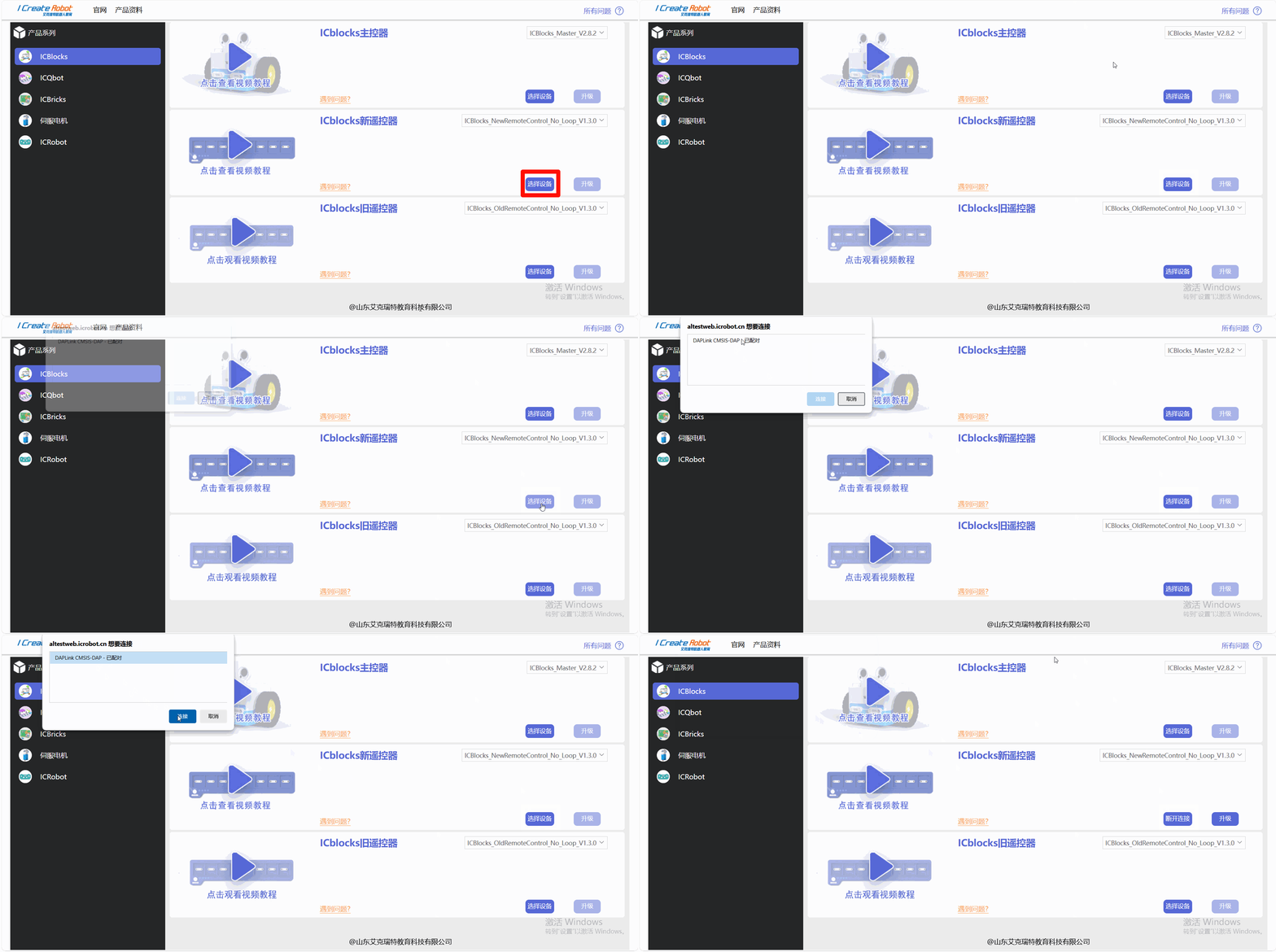
④ Open the firmware upgrade platform in Chrome or Microsoft Edge, and select the ICBlocks Series from the left panel. |
|
|
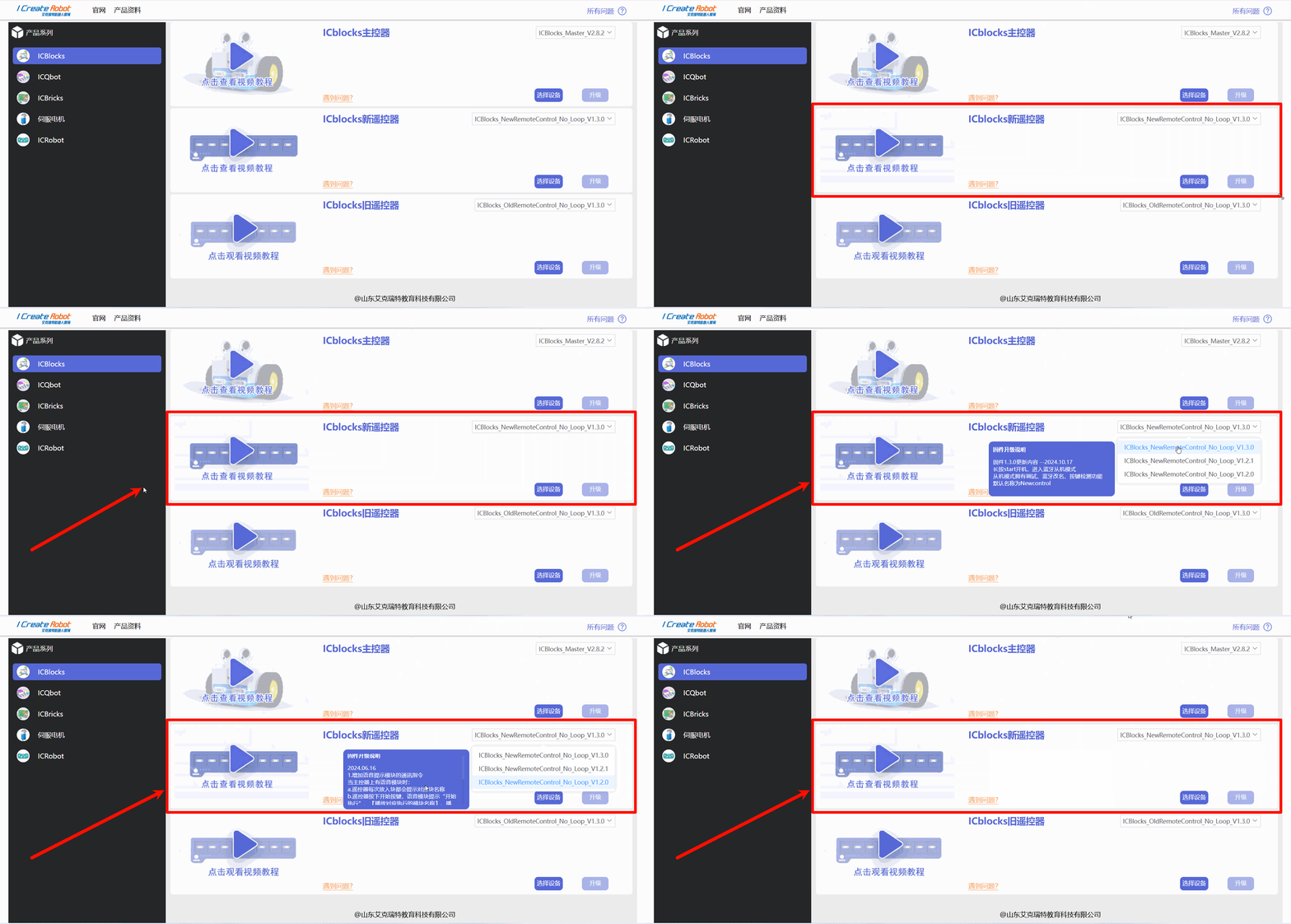
⑤ Locate the ICBlocks Coding Board on the right panel. Expand the dropdown list to view available firmware upgrades. |
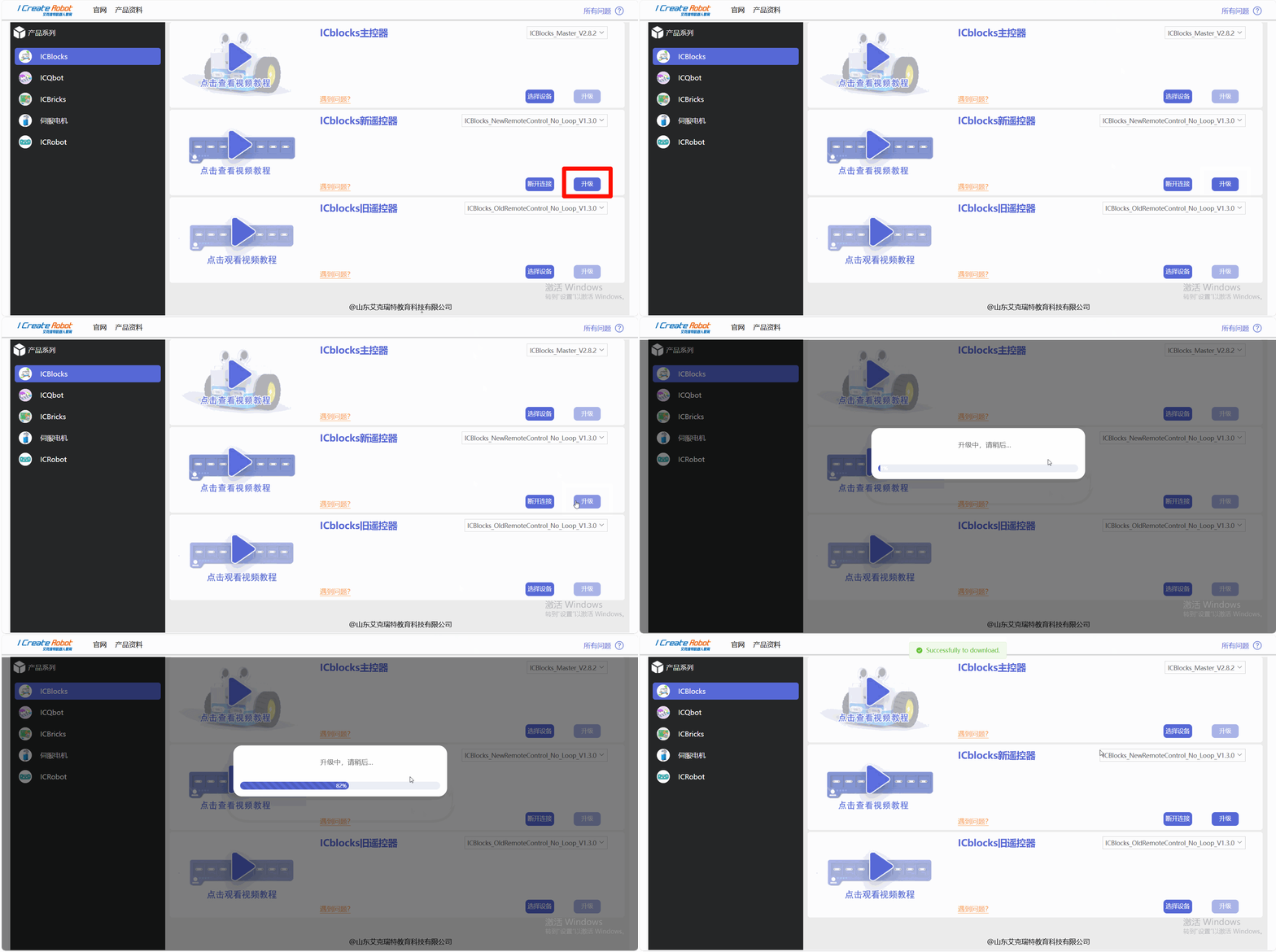
⑥ Choose the desired firmware version and click Upgrade. |
|
|
⑦ Wait for the page to display “Upgrade Successful.” Observe the blue indicator light on the ICLink 2.0 for confirmation of completion. |
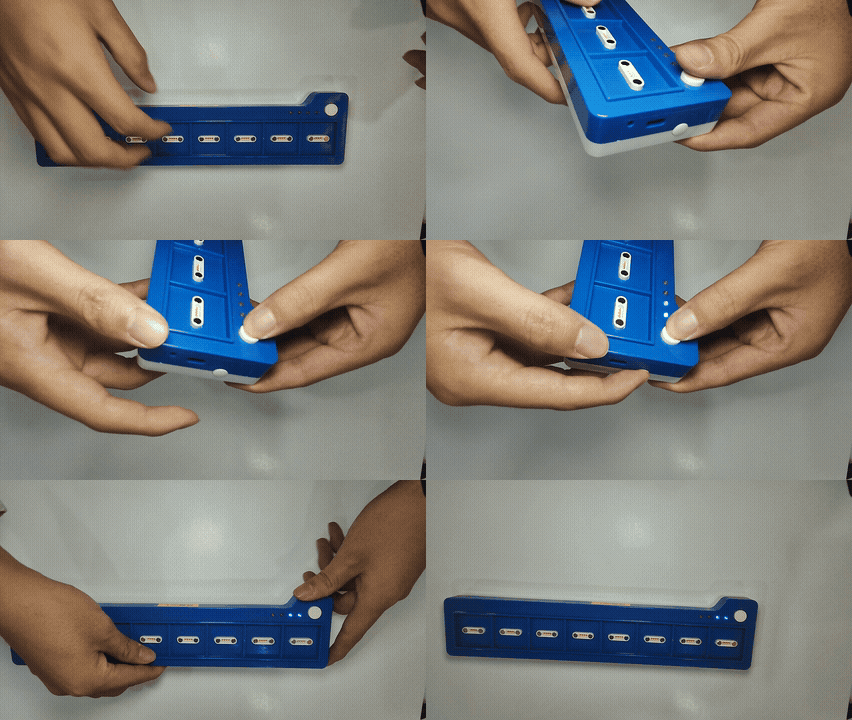
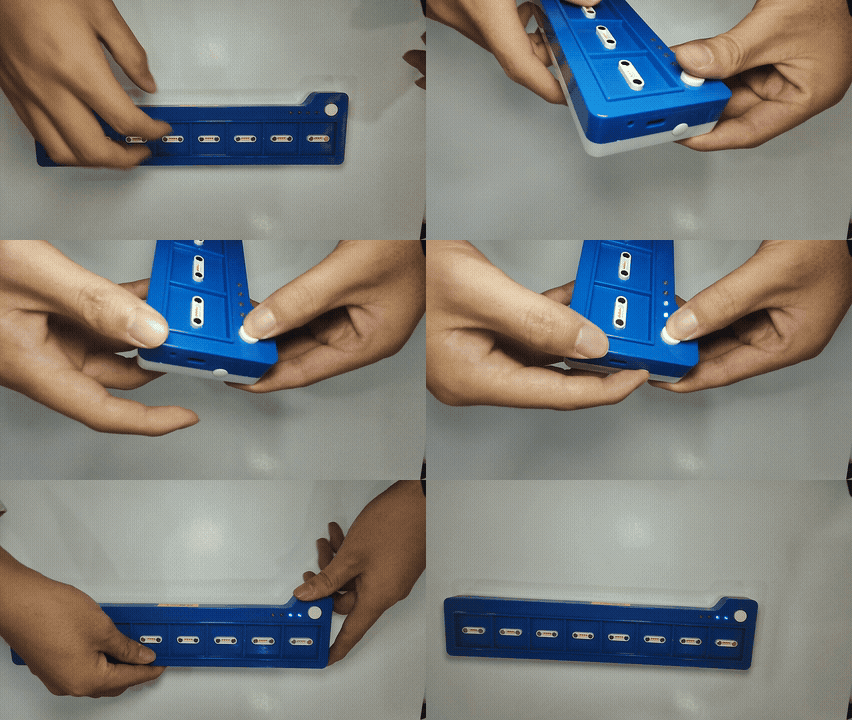
⑧ Power on the upgraded coding board by pressing the Start and Power buttons. |
|
|
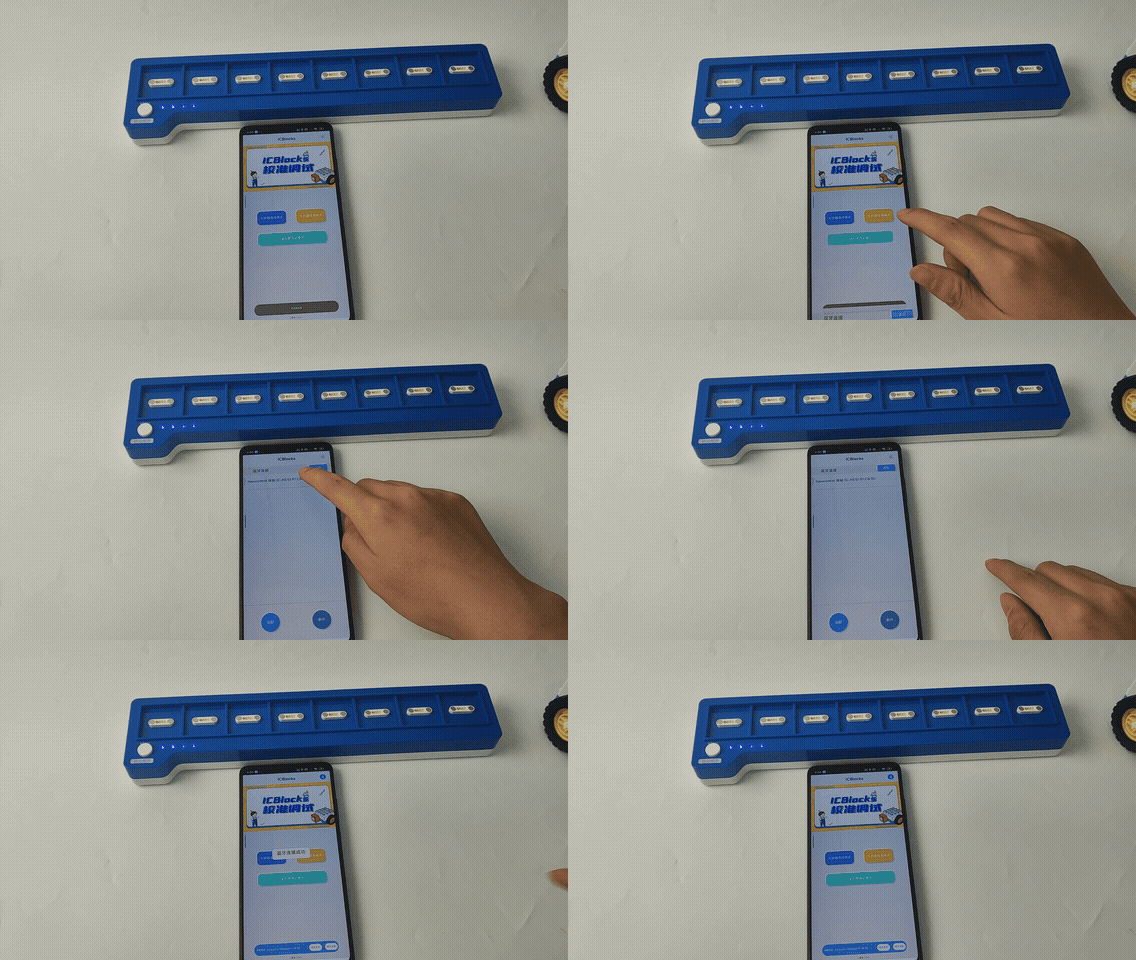
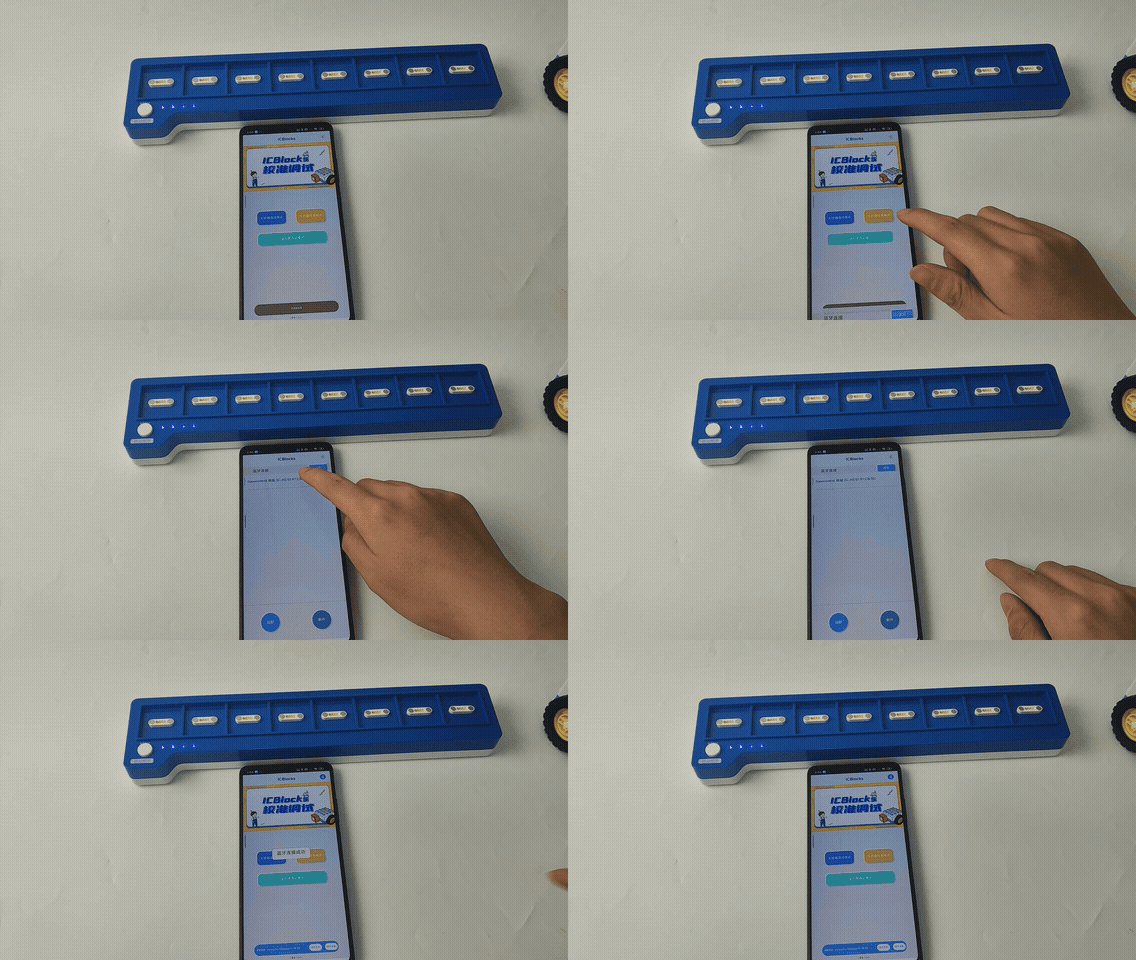
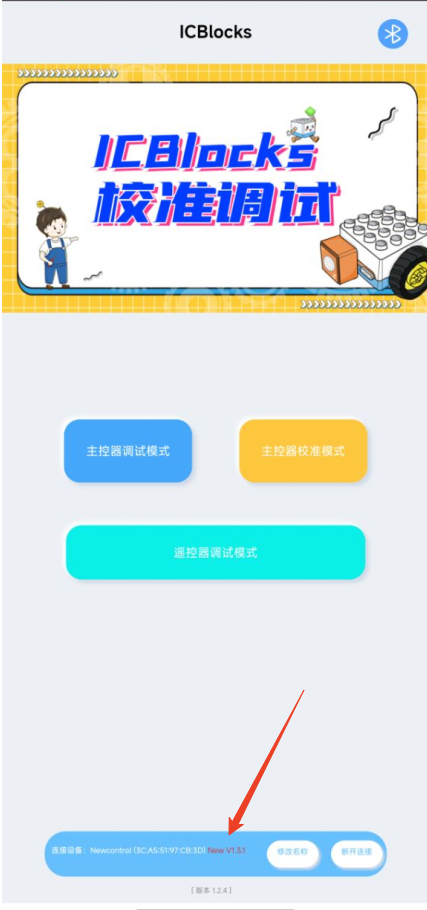
⑨ Connect the Coding Board to the ICBlocks Calibration and Debugging Tool. |
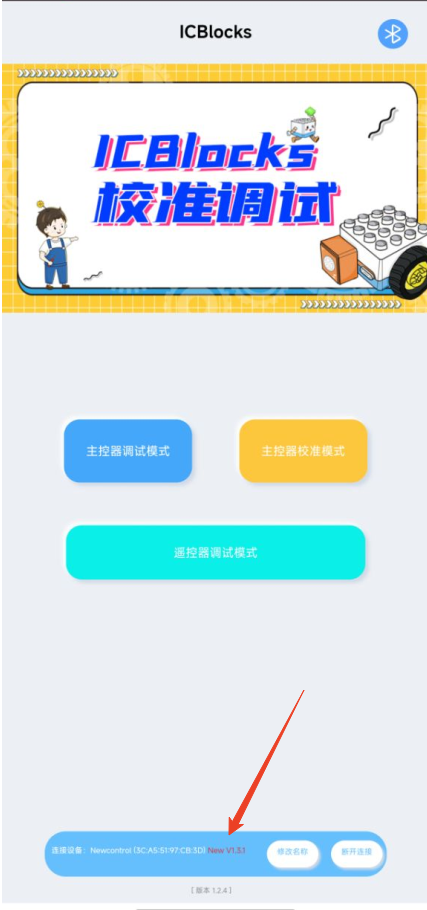
⑩ On the Home Interface of the software, check the device connection status at the bottom to verify the firmware version. Firmware versions below 1.3.1 do not support software version checking. |
Local Upgrade
Preparation
Software Preparation
Firmware download link: [Click Here]
Hardware Preparation
|
|
|
|---|---|---|
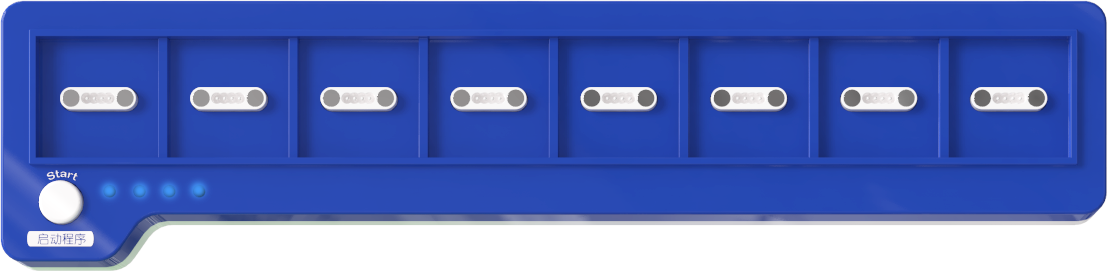
ICBlocks Coding Board x1 |
USB-C Data Cable x1 |
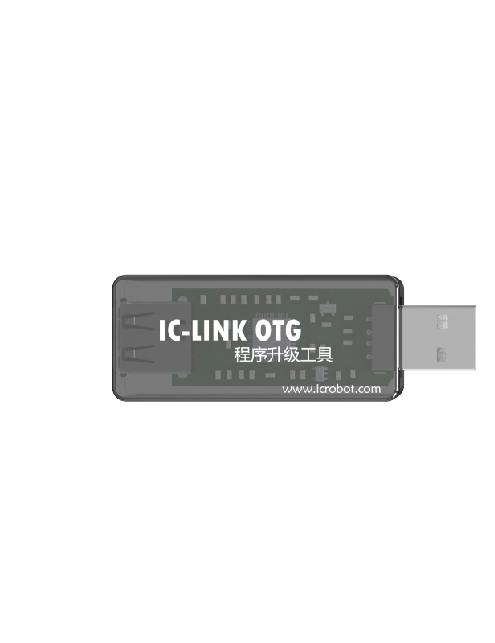
ICLink 1.0 Upgrade Tool x1 |
Upgrade Steps
|
|
|---|---|
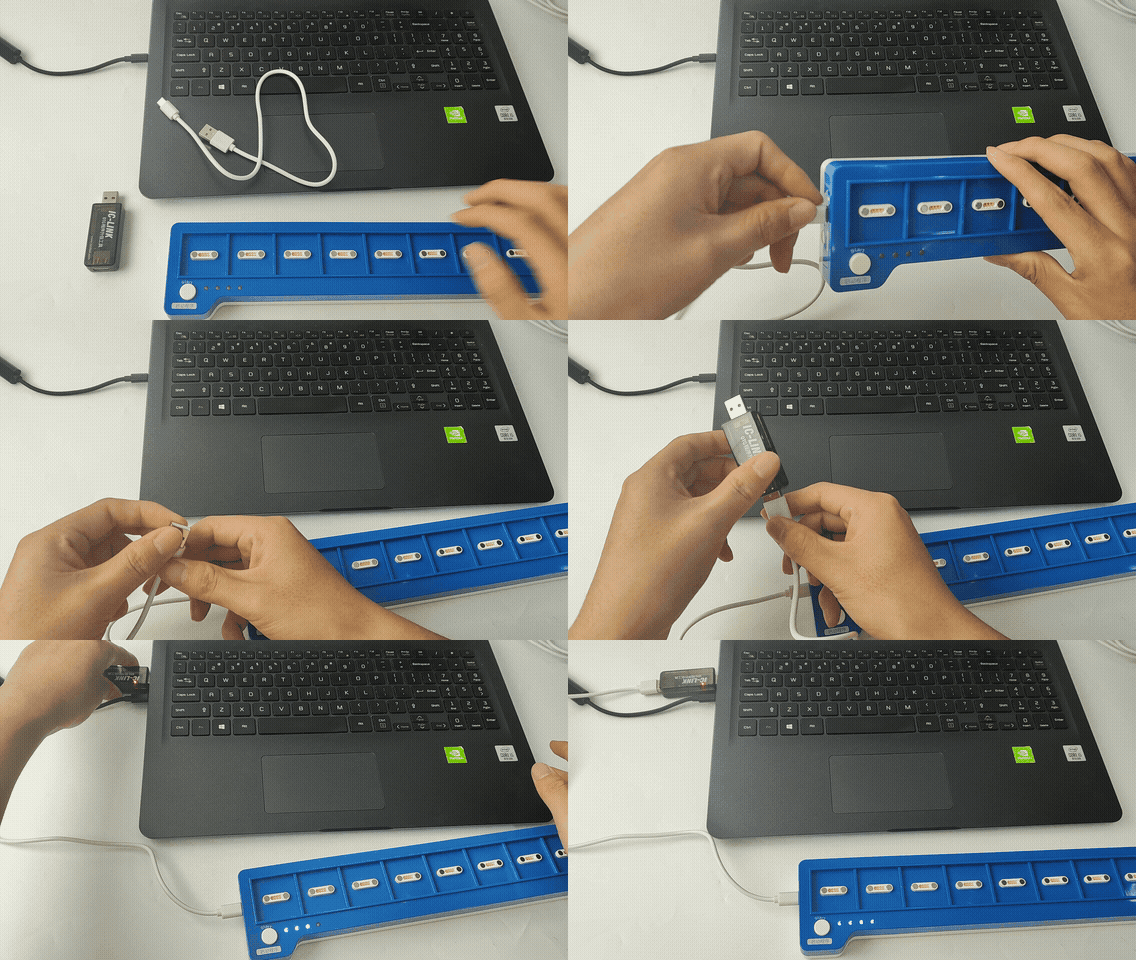
① Connect the ICLink 1.0 to the ICBlocks Coding Board using the USB-C cable, then connect the ICLink 1.0 to your PC via USB. |
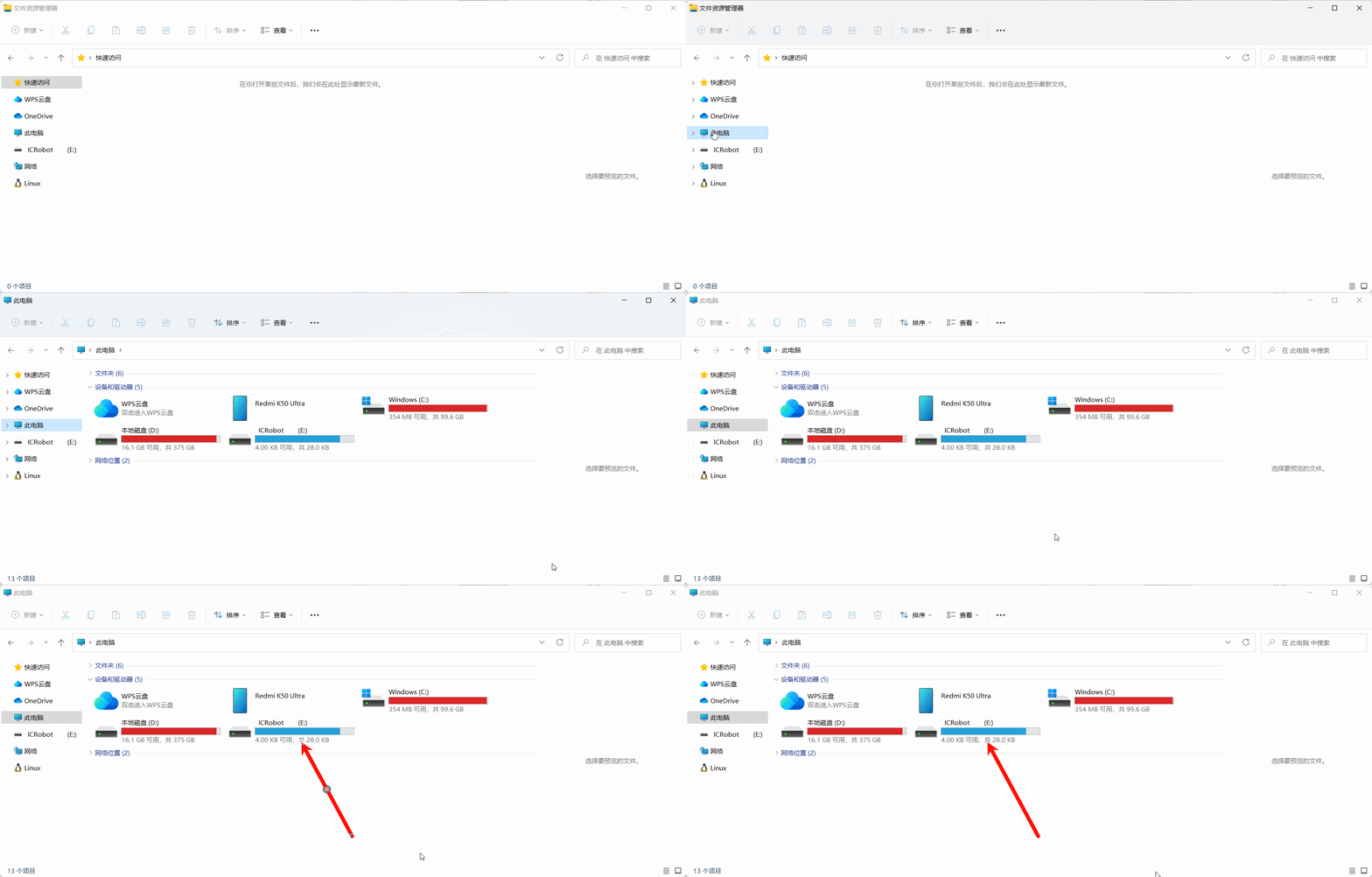
② Open File Explorer and check for a drive labeled “ICRobot.” |
|
|
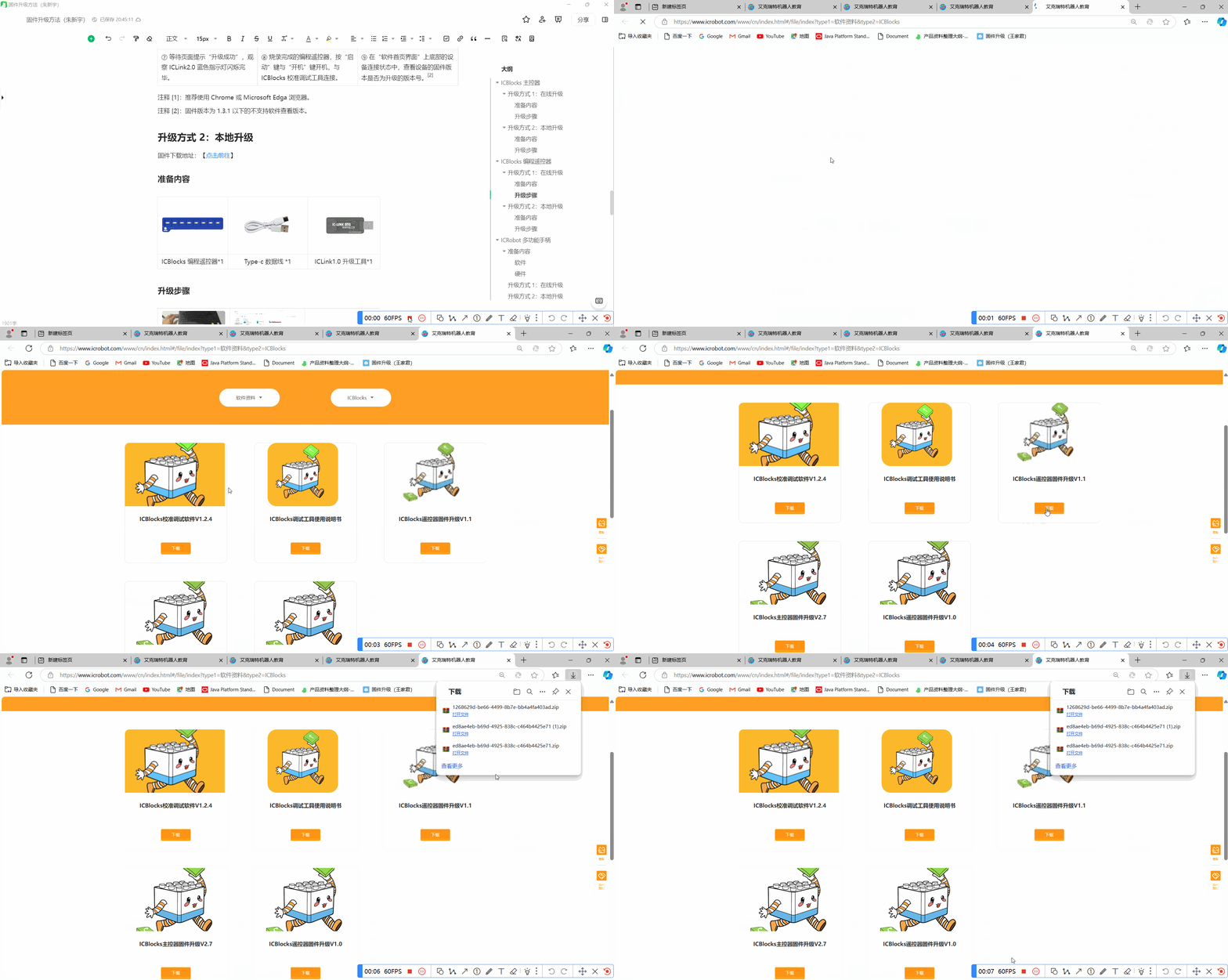
③ Use your browser to navigate to the firmware download platform via the provided link and download the desired firmware. |
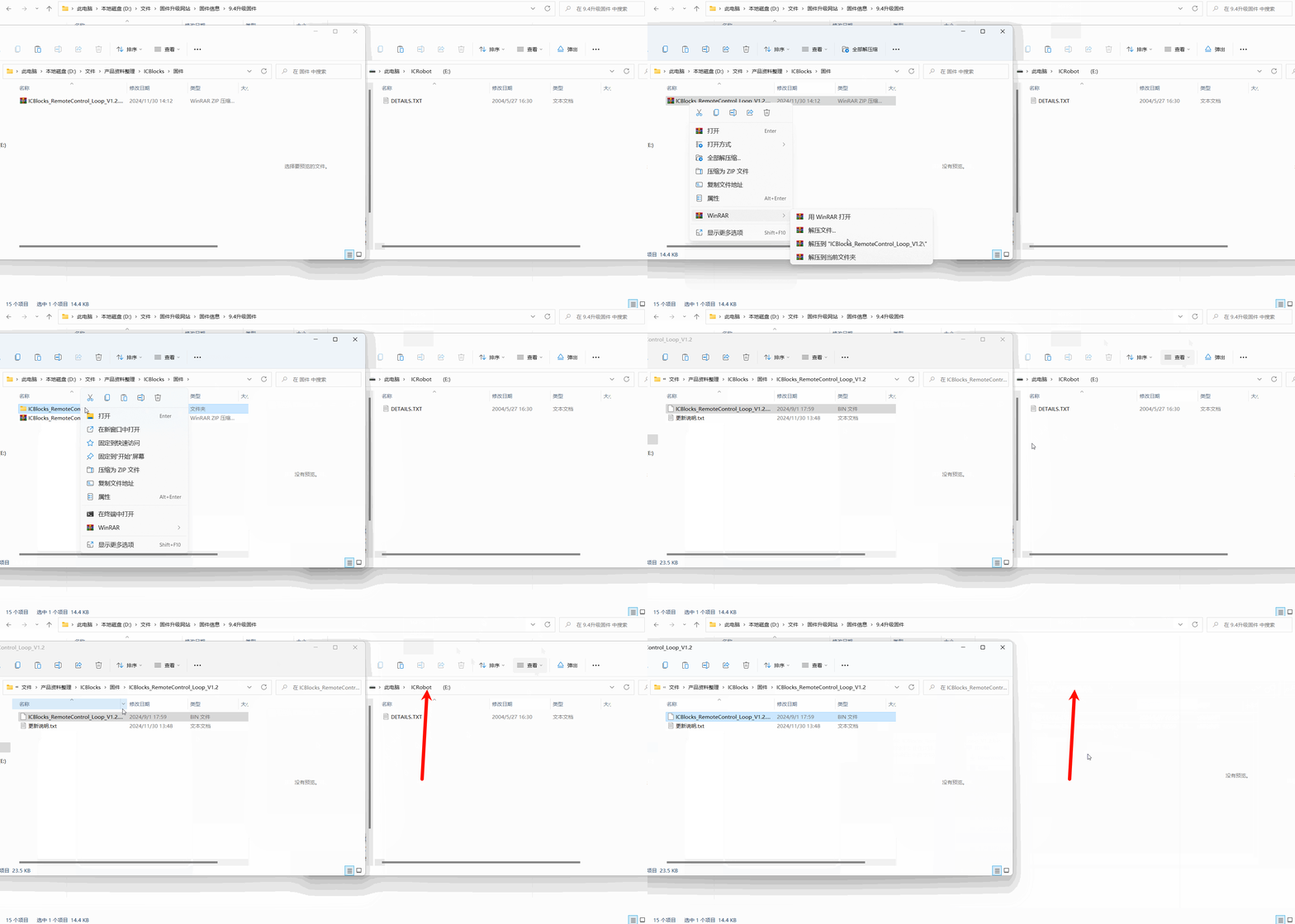
④ Extract the downloaded ZIP file and copy the firmware file to the “ICRobot” drive. Ensure the drive contains only the “DETAILS.TXT” file. If a “FAIL.TXT” file appears, reconnect the ICLink 1.0 to the USB port and repeat the process. |
|
|
⑤ Wait for the copying to complete and observe the green indicator light on the ICLink 1.0 for confirmation of completion. |
⑥ Power on the upgraded coding board by pressing the Start and Power buttons. |
|
|
⑦ Connect the coding board to the ICBlocks Calibration and Debugging Tool. |
⑧ On the Home Interface of the software, check the device connection status at the bottom to verify the firmware version. Firmware versions below 1.3.1 do not support software version checking. |